
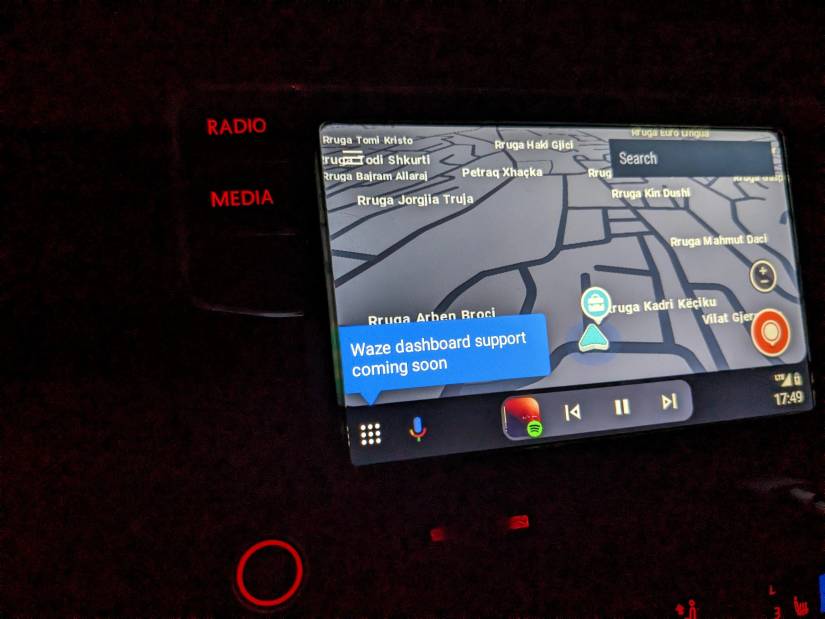
Are you tired of fumbling with your phone while driving? Imagine having Waze right on your car’s screen, guiding you smoothly without distractions.
If you want to make your drives safer and easier, learning how to display Waze on Android Auto is a game-changer. This simple setup will keep your eyes on the road and your hands on the wheel, giving you real-time traffic updates and turn-by-turn directions at a glance.
Keep reading, and you’ll discover exactly how to get Waze working seamlessly with Android Auto in just a few easy steps.
Credit: www.androidpolice.com
Prepare Your Devices
Before you can display Waze on Android Auto, you need to get your devices ready. This ensures a smooth connection and a better experience while driving.
Start by checking if your phone and car support Android Auto. Then, make sure you have the latest versions of Waze and Android Auto apps installed.
Check Android Auto Compatibility
Not all devices and cars work with Android Auto. You must confirm that both your phone and vehicle support this feature.
- Check your phone’s Android version. It should be Android 6.0 (Marshmallow) or higher.
- Verify your car model supports Android Auto. Consult the car manual or manufacturer’s website.
- Make sure your car’s head unit has the latest firmware update.
- Use a high-quality USB cable to connect your phone to the car.
Update Waze And Android Auto Apps
Updating your apps fixes bugs and adds new features. It also helps to keep Waze and Android Auto working well together.
| App | Where to Update | Why Update |
| Waze | Google Play Store | Improves navigation and bug fixes |
| Android Auto | Google Play Store | Enhances car compatibility and stability |
Connect Android Phone To Car
To use Waze on Android Auto, you must connect your Android phone to your car. This connection lets you see Waze on the car’s screen. There are two common ways to connect: using a USB cable or wireless connection.
Both methods have simple steps to follow. Choose the one that works best for your car and phone.
Use Usb Cable Connection
Connecting with a USB cable is the most common method. It gives a stable connection and charges your phone at the same time.
- Plug your phone into the car’s USB port using a good-quality cable.
- Turn on your car and wait for Android Auto to launch.
- On your phone, allow permissions if asked.
- Open the Waze app on the car’s screen.
Enable Wireless Android Auto
Some cars and phones support wireless Android Auto. This lets you connect without cables but needs setup first.
| Requirement | Details |
| Phone | Android 11 or higher with 5 GHz Wi-Fi support |
| Car | Wireless Android Auto compatible |
| Setup | Pair phone and car via Bluetooth and Wi-Fi |
To enable wireless Android Auto, start by pairing your phone and car using Bluetooth. Then, follow on-screen instructions to connect via Wi-Fi. Once done, Waze will appear on your car’s display.
Set Up Waze On Android Auto
Waze is a popular navigation app that helps you drive safely and efficiently. You can use Waze on Android Auto to get directions right on your car’s screen.
This guide shows you how to set up Waze on Android Auto for easy access while driving.
Allow App Permissions
Before using Waze on Android Auto, you must give the app the right permissions. These permissions let Waze access your location and other necessary data.
- Open your phone’s Settings app.
- Tap on Apps or Applications.
- Find and select Waze from the list.
- Tap Permissions.
- Allow location access and any other required permissions.
Select Waze As Default Navigation
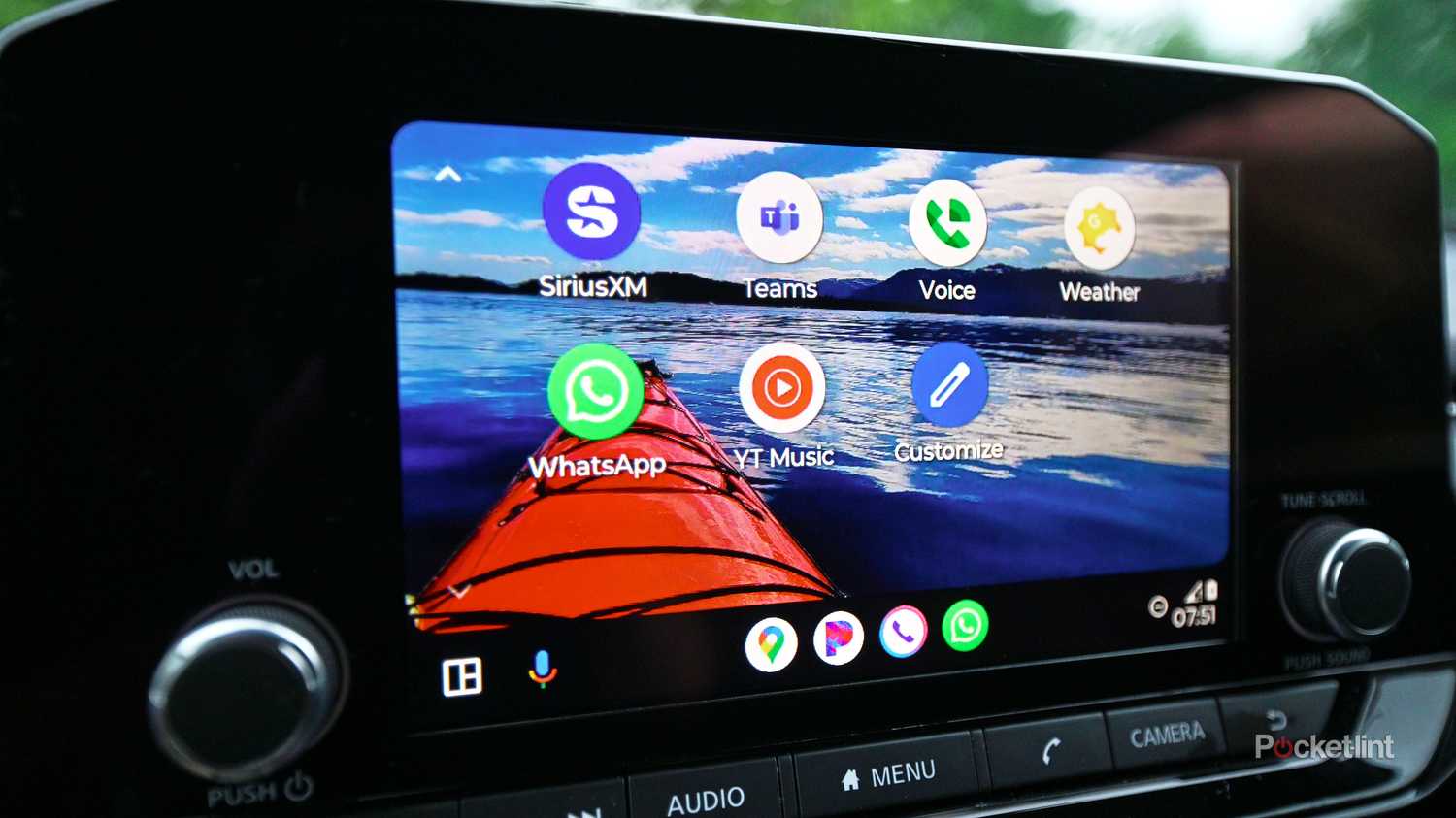
You need to choose Waze as the default navigation app on Android Auto. This will make Waze open automatically for directions.
| Action | How to Do It |
| Open Android Auto | Launch the Android Auto app on your phone. |
| Go to Settings | Tap the menu icon and select Settings. |
| Choose Navigation App | Find the option for Default Navigation App. |
| Select Waze | Tap Waze to set it as the default app. |
Credit: www.pocket-lint.com
Troubleshoot Common Issues
Using Waze with Android Auto can improve your driving experience. Sometimes, the app may not work as expected. This guide helps you fix usual problems.
Check these tips to get Waze running smoothly on your Android Auto system. Focus on app visibility and audio issues.
Waze Not Showing On Android Auto
If Waze does not appear on Android Auto, check your phone and car settings. The app must be allowed to connect and display.
- Make sure your phone is connected to the car with a USB cable or Bluetooth.
- Open the Android Auto app and check if Waze is enabled in the list of apps.
- Update both Waze and Android Auto apps to the latest versions.
- Restart your phone and car system to refresh the connection.
- Clear cache and data for both apps in your phone settings.
- Check if your car supports Waze on Android Auto by consulting the manual.
Audio And Voice Navigation Problems
Audio issues can stop voice directions from playing or cause sound to be very low. Fix sound settings to hear Waze properly.
| Problem | Cause | Fix |
| No voice directions | Muted Waze or Android Auto volume | Check volume levels and unmute Waze in the app |
| Low or distorted sound | Bluetooth or cable connection issues | Reconnect devices and try a different cable if needed |
| Voice not syncing with navigation | App or system lag | Restart apps and phone, update apps |
| Audio plays on phone, not car | Audio output set to phone | Set audio output to car speakers via Bluetooth or USB |
Tips For Smooth Navigation
Using Waze on Android Auto makes driving easier. It shows traffic, routes, and alerts on your car screen.
To get the best experience, you should prepare your phone and apps properly. This helps avoid problems while driving.
Optimize Phone Settings
Adjust phone settings for better connection and screen display. This helps Waze run smoothly on Android Auto.
Turn on Bluetooth and location services before connecting. Also, keep your phone charged to avoid shutdowns.
- Enable Bluetooth for phone-car connection
- Turn on GPS for accurate location
- Set screen timeout to a longer time
- Close unused apps to save memory
- Keep phone battery above 20%
Keep Apps Updated
Update Waze and Android Auto regularly. New versions fix bugs and add improvements for navigation.
Check updates in the Google Play Store. Use Wi-Fi to save mobile data when downloading updates.
- Open Google Play Store on your phone
- Search for Waze and Android Auto
- Tap “Update” if available
- Restart your phone after updates
- Check for updates monthly

Credit: www.reddit.com
Frequently Asked Questions
How To Connect Waze To Android Auto?
To connect Waze, first install the app on your phone. Then, plug your phone into your car’s USB. Android Auto will launch automatically, displaying Waze on the car screen.
Can I Use Voice Commands With Waze On Android Auto?
Yes, you can use voice commands to search destinations and control navigation in Waze. Simply press the voice button on your steering wheel or Android Auto screen.
Why Won’t Waze Show On My Android Auto Screen?
Ensure your phone and car support Android Auto. Check if Waze is updated and allowed in Android Auto settings. Restart your phone and reconnect to fix minor glitches.
Is Waze Free To Use On Android Auto?
Yes, Waze is completely free. You only need an internet connection on your phone. There are no subscription fees or hidden costs.
Conclusion
Displaying Waze on Android Auto makes driving safer and easier. You get real-time traffic updates and directions on your car screen. Just follow the simple steps to connect your phone and app. This helps you focus on the road, not your phone.
Keep your Waze app updated for the best experience. Enjoy smoother trips and avoid traffic jams with this setup. Drive smart, stay connected, and use technology to make your journey better.