
Are you tired of struggling to switch between apps while driving with Android Auto? Knowing how to change apps quickly and safely can make your driving experience smoother and more enjoyable.
In this guide, you’ll learn simple steps to navigate your favorite apps without distractions. By mastering these tips, you’ll keep your focus on the road and still access everything you need. Keep reading to discover easy ways to take full control of your Android Auto setup.
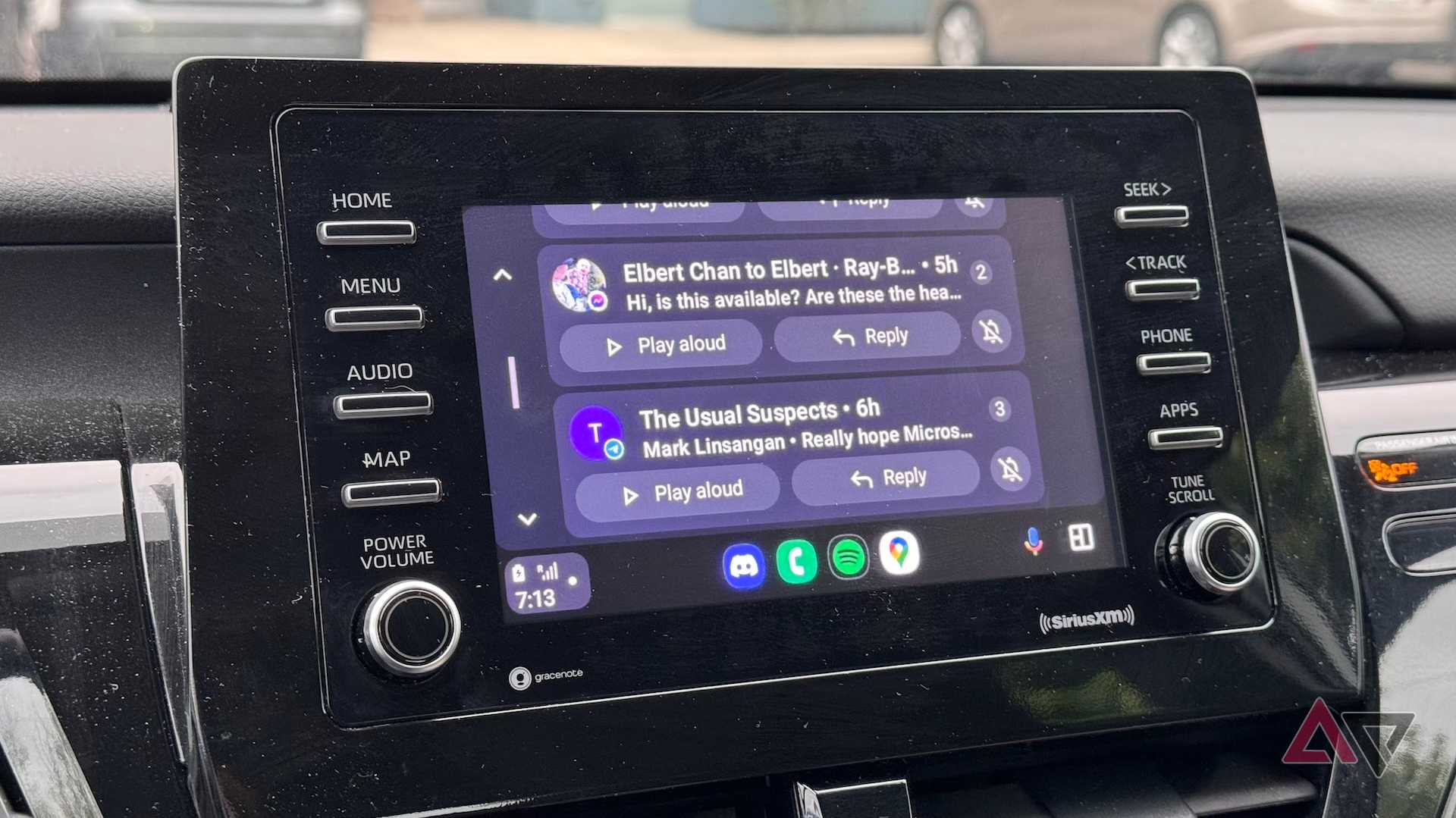
Credit: www.androidpolice.com
Getting Started With Android Auto
Android Auto helps you use your phone safely while driving. It shows apps on your car’s screen.
You can change apps easily to listen to music or get directions. This guide explains how to do it.
Open The Android Auto Interface
First, connect your phone to your car using a USB cable or Bluetooth. The Android Auto screen appears.
Tap the home button if you don’t see the main menu. This shows the apps you can use.
Access The App Launcher
Look for the app launcher icon on the screen. It usually looks like a grid of dots or squares.
Tap this icon to open a list of all available apps on Android Auto.
Switch To A Different App
From the app launcher, select the app you want to use. The new app will open on the screen.
You can switch apps anytime by repeating these steps. This keeps you focused on driving.
Use Voice Commands To Change Apps
Press the voice command button on your steering wheel. Say the app name you want to open.
Voice control lets you change apps without touching the screen. This is safer while driving.
Customize Your App List
On your phone, open the Android Auto app. You can select which apps appear on your car’s screen.
- Open Android Auto settings on your phone
- Tap “Customize launcher” or “Customize apps”
- Choose apps to show or hide
- Save changes and reconnect if needed
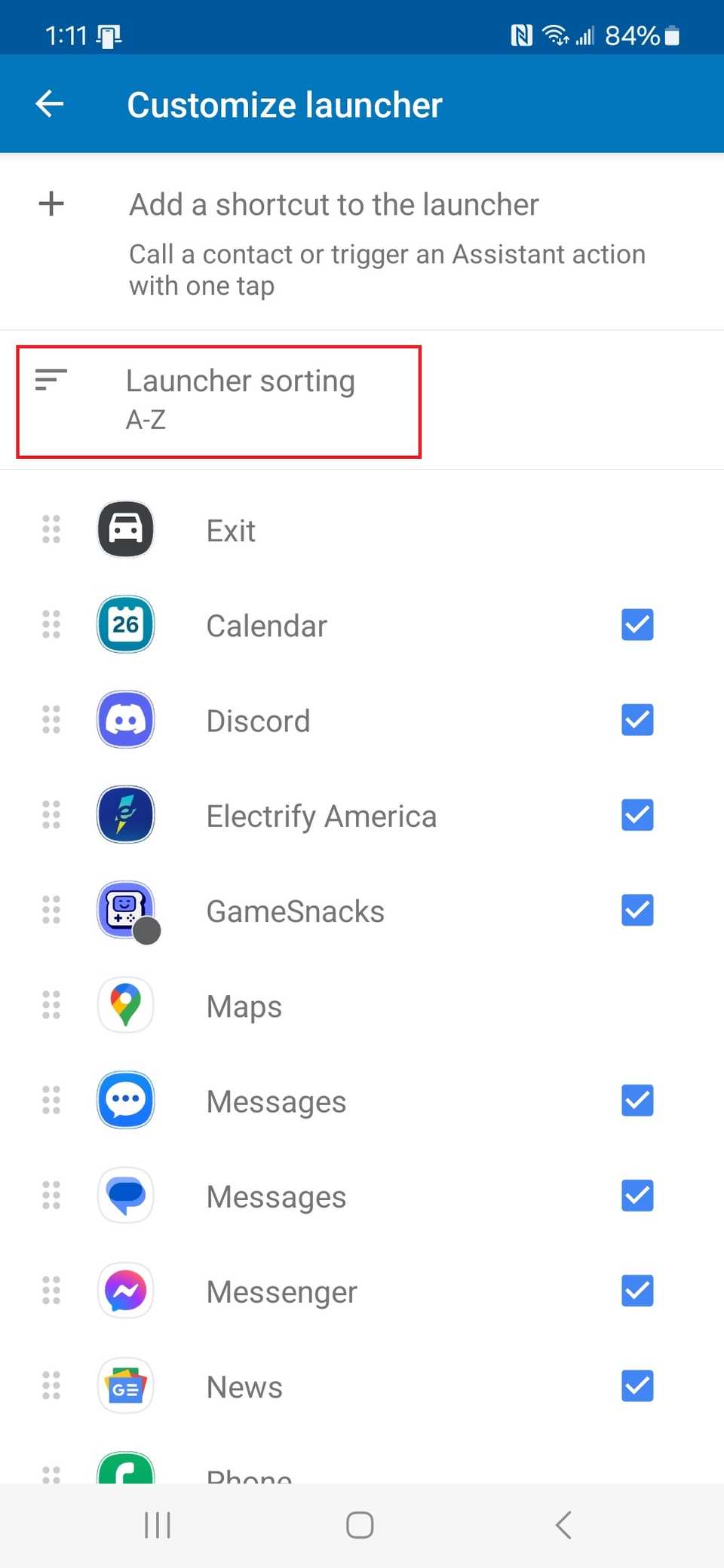
Credit: www.androidpolice.com
Connecting Your Phone To Android Auto
Android Auto helps you connect your phone to your car’s display. This makes using apps while driving easier and safer.
You can control navigation, music, and messages on the car screen. Let’s learn how to connect your phone to Android Auto.
Check Compatibility
Ensure your car and phone are compatible with Android Auto. Most modern cars and smartphones support it.
- Check your car’s manual or manufacturer website
- Ensure your phone has Android 6.0 or higher
- Install the Android Auto app if needed
Connect With A Usb Cable
Use a USB cable to connect your phone to the car’s USB port. This helps in a stable connection for Android Auto.
- Use the original cable for best results
- Plug the cable into your phone and car
- Follow prompts on your phone and car display
Setting Up Wireless Connection
Some cars and phones support wireless Android Auto. This feature allows you to connect without a USB cable.
- Check if your car supports wireless connections
- Turn on Bluetooth and Wi-Fi on your phone
- Pair your phone with the car’s system
Managing Apps On Android Auto
Android Auto allows you to use certain apps while driving. You can organize them according to your needs.
Go to the Android Auto settings on your phone. Arrange apps and set preferences easily.
Troubleshooting Connection Issues
If Android Auto does not connect, check your settings. Restart your phone and car system if needed.
- Make sure all apps and software are updated
- Try a different USB cable if problems persist
- Consult your car’s manual for additional help
Accessing Apps On Android Auto
Android Auto lets you use your phone’s apps safely while driving. You can access music, navigation, and messaging apps through your car’s display.
Knowing how to find and open apps quickly keeps your focus on the road. This guide explains how to access apps on Android Auto easily.
Opening Apps From The Android Auto Home Screen
The home screen shows your favorite apps for quick access. You can tap any app icon to open it.
If you do not see your app, swipe left or right to browse more apps on the screen.
Using The App Launcher To Find Apps
The app launcher lists all apps compatible with Android Auto. You can scroll through the list to find the app you want.
- Tap the app launcher icon on the home screen.
- Scroll up or down to see all available apps.
- Tap the app icon to open it.
Accessing Apps Using Voice Commands
You can open apps using Google Assistant voice commands. Say “Hey Google” and then the app name.
For example, say “Play music on Spotify” or “Navigate home with Google Maps”.
Apps Supported By Android Auto
| Category | App Examples |
| Navigation | Google Maps, Waze |
| Music & Audio | Spotify, Pandora, Audible |
| Messaging | WhatsApp, Messages, Telegram |
| News & Podcasts | Google News, Pocket Casts |
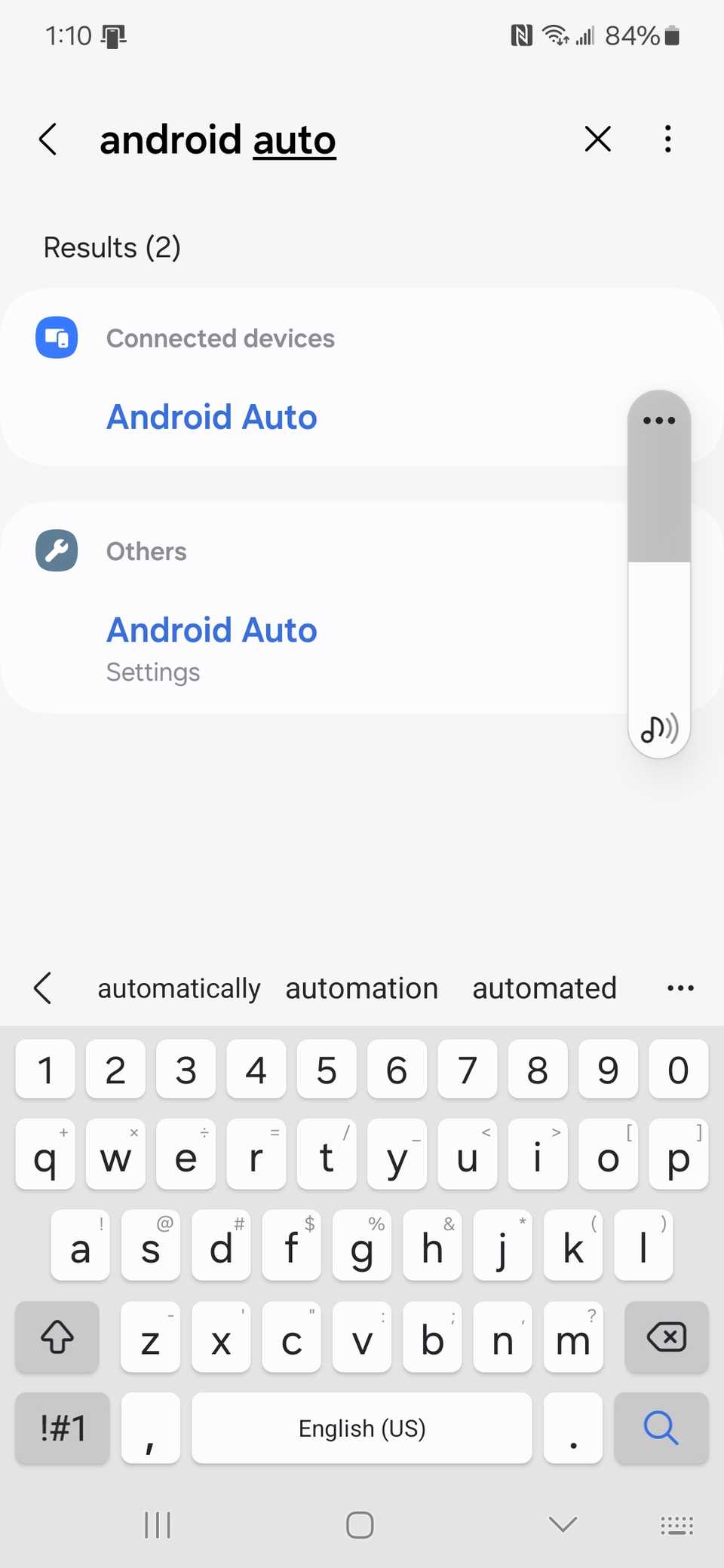
Credit: www.androidpolice.com
Switching Between Apps Quickly
Android Auto lets you use your favorite apps safely while driving. Knowing how to switch apps fast keeps your focus on the road.
This guide shows simple ways to change apps quickly on Android Auto.
Using The App Launcher
The App Launcher shows all your available apps. You can open it anytime to pick a new app.
Tap the Apps icon on the screen to open the launcher. Then select the app you want to use next.
Using The Voice Command
You can switch apps without touching the screen. Just say the app name using voice commands.
- Press the voice button on the steering wheel or screen.
- Say “Open” followed by the app name.
- Android Auto will switch to that app automatically.
Using The Recent Apps Button
The Recent Apps button helps you switch between apps you used recently. It saves time instead of opening the launcher each time.
| Button | Function |
|---|---|
| Recent Apps | Shows a list of apps used recently |
| Tap App | Switches to the selected app |
| Swipe Left/Right | Scroll through recent apps |
Using Voice Commands To Change Apps
Android Auto lets you control apps using your voice. This helps you keep your eyes on the road. Changing apps is quick and safe with voice commands.
You can switch between navigation, music, and messaging apps without touching the screen. Just speak to Android Auto and it will do the rest.
Activate Google Assistant
To use voice commands, start by activating Google Assistant. You can do this by saying “Hey Google” or pressing the voice button on your steering wheel. Once activated, you can give commands to Android Auto.
Speak The App Name
After activating Google Assistant, say the name of the app you want to open. For example, say “Open Spotify” or “Switch to Google Maps.” The system will launch that app for you.
Use Voice Commands To Navigate Apps
Voice commands can also help you move inside apps. You can say commands like “Play my playlist” or “Send a message to John.” This keeps your hands free and your focus on driving.
Common Voice Commands For Changing Apps
- “Open [app name]” – to launch a specific app
- “Switch to [app name]” – to change to another app
- “Go back” – to return to the previous screen
- “Play [song or playlist] on [music app]” – to start music
- “Navigate to [destination]” – to open navigation apps
Apps Compatible With Voice Commands
| App Type | Example Apps |
| Navigation | Google Maps, Waze |
| Music | Spotify, YouTube Music |
| Messaging | WhatsApp, Messages |
| Phone | Phone Dialer, Contacts |
Customizing Your App Layout
Android Auto lets you change how your apps appear on the screen. You can arrange apps so the ones you use most are easy to find. Customizing the layout helps you drive safely and stay organized.
This guide explains how to adjust your app layout on Android Auto. You will learn how to move, add, or remove apps from the main screen.
Accessing The App Layout Settings
Start by opening Android Auto on your car’s display or phone. Then go to the settings menu. Here you can find the option to customize your app layout. This is where you control which apps appear and in what order.
Rearranging Apps On The Screen
You can move apps to different positions on the main screen. This lets you place your favorite apps in the easiest spots to reach. Drag and drop apps to new spots or use the menu options to move them up or down.
- Open the layout editor in Android Auto settings.
- Tap and hold the app icon you want to move.
- Drag the app to the desired position.
- Release to place the app there.
- Save your changes before exiting.
Adding And Removing Apps
You can add apps that are compatible with Android Auto to your main screen. Also, remove apps that you do not use often. This keeps your screen simple and focused.
| Action | How to Do It |
|---|---|
| Add an App | Select apps from the available list and tap “Add” |
| Remove an App | Tap the app icon and select “Remove” or drag it out of the layout |
| Confirm Changes | Save the layout to apply your new app setup |
Using Favorites For Quick Access
You can mark certain apps as favorites. These apps show up first on the screen. Favorites help you get to your most used apps faster without searching.
How to set favorites:
- Go to the app list in settings.
- Tap the star icon next to the app you want to favorite.
- Check the main screen to see the app in the favorites section.
Troubleshooting Common Issues
Changing apps on Android Auto sometimes causes problems. These issues can stop apps from working correctly. Fixing them is usually simple.
This guide covers common problems and how to solve them. Follow the tips to get your apps working again.
App Not Showing On Android Auto
If an app does not appear on Android Auto, check if the app supports Android Auto. Some apps need updates to work properly.
Try these steps to fix the issue:
- Update the app from Google Play Store
- Restart your phone and car system
- Make sure the app permissions are granted
- Check the app is allowed in Android Auto settings
App Crashes Or Freezes
Apps may crash or freeze during use. This can happen if the app or system is outdated or overloaded.
Try these fixes:
- Close the app and reopen it
- Clear the app cache in phone settings
- Update the app and Android Auto to the latest version
- Restart your phone and car system
Bluetooth Or Usb Connection Problems
Connection issues can stop apps from changing or working on Android Auto. The link between phone and car must be stable.
| Problem | Possible Cause | Solution |
| Bluetooth drops | Interference or weak signal | Move closer to car, remove devices causing interference |
| USB not recognized | Faulty cable or port | Try a different USB cable or port |
| Connection slow | Old phone software | Update phone software |
Apps Not Updating Automatically
Apps that do not update can cause problems in Android Auto. Manual updates might be needed sometimes.
Try this checklist:
- Open Google Play Store
- Go to “My apps & games”
- Find the app and tap “Update”
- Restart Android Auto after updating
Tips For Safe App Usage While Driving
Driving safely should always be your main focus. Using apps on Android Auto can be helpful, but it’s important to use them safely.
Here are some tips to help you manage your apps while keeping your eyes on the road and your hands on the wheel.
Choose Essential Apps Only
Only use apps that help you drive better. Navigation and music apps are useful while driving.
- Google Maps for directions
- Spotify for music
- WhatsApp for voice messages
Set Up Voice Commands
Use voice commands to control apps without touching your phone. This keeps your hands free for driving.
Practice using voice commands at home so you feel confident while driving.
Limit Notifications
Too many notifications can distract you from the road. Set your phone to do not disturb mode while driving.
- Turn off non-essential notifications
- Use do not disturb features
- Check messages at stops
Pre-set Destinations And Playlists
Set your destination and music playlist before you start driving. This way, you won’t need to adjust them while on the road.
Plan your route and entertainment ahead of time for a smoother trip.
Use Android Auto’s Interface
The Android Auto interface is designed for easy use while driving. It shows large icons and simple controls.
Familiarize yourself with the interface to make quick adjustments without looking away from the road.
Frequently Asked Questions
How Do I Switch Between Apps On Android Auto?
To switch apps on Android Auto, use the touchscreen or voice command. Tap the Home button, then select your desired app from the menu. You can also say, “Open [app name]” to change apps hands-free while driving.
Can I Customize App Order On Android Auto?
Android Auto does not currently support manual app order customization. Apps appear based on recent use and compatibility. You can manage installed apps on your phone to influence which apps show up on Android Auto’s interface.
How To Change Music Apps On Android Auto?
To change music apps, tap the media icon on Android Auto’s home screen. Select your preferred music app from the list. You can also use voice commands like “Play [app name]” for quick app switching.
Why Won’t Some Apps Show On Android Auto?
Only apps optimized for Android Auto appear on the screen. Ensure your apps are updated and compatible. Unsupported or outdated apps won’t display or function on Android Auto.
Conclusion
Changing apps on Android Auto is simple and quick. You only need a few steps to switch between your favorite apps. This lets you stay focused on driving and enjoy the features you want. Remember to keep your device updated for the best experience.
Try changing apps next time you drive and see how easy it is. Safe driving and happy app switching!