
Are you tired of dealing with messy cables every time you want to use Android Auto in your car? Imagine enjoying all your favorite apps, music, and navigation without plugging in a single wire.
Connecting a wireless Android Auto adapter can make your driving experience smoother and safer. In this guide, you’ll learn exactly how to set up your wireless adapter step-by-step. By the end, you’ll be ready to hit the road with hands-free convenience and seamless connectivity.
Keep reading to discover the simple tricks that will transform your car’s tech instantly.

Credit: aluratek.com
Choose Compatible Adapter
To use a wireless Android Auto adapter, you need the right device. Not all adapters work with every car or phone. Choosing a compatible adapter ensures smooth connection and good performance.
Check your car and phone before buying an adapter. This helps avoid connection problems and saves time.
Check Car Compatibility
Not every car supports wireless Android Auto. Some cars need a wired connection or special systems. Check if your car stereo can pair with a wireless adapter.
- Look for cars with built-in Android Auto support.
- Check if your car stereo allows wireless connections.
- Review your car manual or manufacturer’s website.
- Confirm that your car’s USB port supports data transfer.
Review Android Device Requirements
Your phone must meet Android Auto’s rules to work with a wireless adapter. Older phones or software may not connect properly.
- Use Android 10 or newer for best wireless support.
- Make sure your phone has Wi-Fi and Bluetooth turned on.
- Check if your phone supports 5 GHz Wi-Fi bands.
- Install the latest version of the Android Auto app.

Credit: www.reddit.com
Prepare Your Android Phone
Before connecting a wireless Android Auto adapter, you need to get your phone ready. This helps ensure a smooth connection and better performance.
Follow the steps below to prepare your Android phone for wireless Android Auto use.
Enable Bluetooth And Wi-fi
Wireless Android Auto uses Bluetooth and Wi-Fi to communicate with your car. You must turn on both on your phone to connect properly.
- Open the Settings app on your Android phone.
- Tap on “Connections” or “Network & Internet”.
- Turn on Bluetooth by tapping the switch.
- Turn on Wi-Fi and connect to your car’s network if needed.
- Keep Bluetooth and Wi-Fi active while using Android Auto.
Update Android Auto App
Make sure your Android Auto app is up to date. Updates fix bugs and add new features for better wireless use.
| How to Update | Details |
|---|---|
| Open Google Play Store | Search for “Android Auto” |
| Tap “Update” if available | Wait for the app to download and install |
| Restart your phone | Helps apply the update fully |
Set Up The Wireless Adapter
Setting up a wireless Android Auto adapter lets you connect your phone to your car without cables. This guide shows you how to prepare the adapter and link it to your vehicle.
Follow these steps to plug in the adapter, power it on, and pair it with your car’s system.
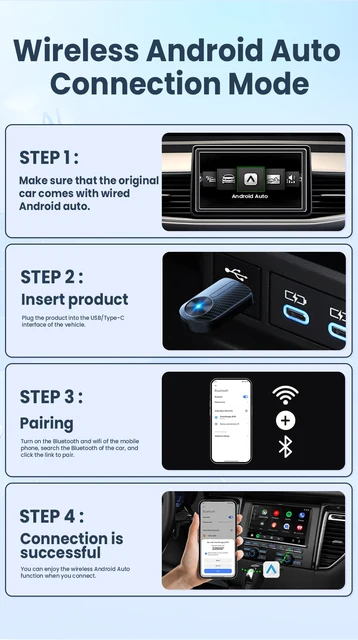
Plug In The Adapter
Find your car’s USB port, usually near the dashboard or center console. Plug the wireless adapter into this port firmly to ensure a good connection.
Some adapters may also need power from the cigarette lighter or a separate USB power source. Check your adapter’s instructions for power requirements.
Power On And Pair With Car
After plugging in, turn on your car’s ignition. The adapter should power up automatically or with a button press on the device.
Enable Bluetooth on your Android phone. Search for the adapter’s name in the Bluetooth settings and select it to pair.
- Make sure the car’s screen shows the adapter as connected
- Follow any prompts on your phone to complete pairing
- Open the Android Auto app to start using it wirelessly
Credit: www.aliexpress.com
Connect Phone To Adapter
Connecting your phone to a wireless Android Auto adapter lets you use apps and navigation safely. The process uses Bluetooth to pair your phone and adapter.
Follow simple steps to scan for the adapter and complete the Bluetooth pairing quickly.
Scan For Devices
Turn on Bluetooth on your phone. Open the Bluetooth settings and look for new devices. The adapter will appear in the list as a device name, often matching the brand or model.
- Open phone Settings
- Go to Bluetooth menu
- Ensure Bluetooth is enabled
- Tap “Scan” or “Search for devices”
- Wait for the adapter name to show up
- Select the adapter from the list
Complete Bluetooth Pairing
After selecting the adapter, your phone may ask for a PIN. Usually, the PIN is “0000” or “1234.” Enter the code to finish pairing. Once connected, Android Auto will start automatically.
| Action | Details |
| Find adapter | Scan Bluetooth devices on your phone |
| Select adapter | Tap the adapter name from the list |
| Enter PIN | Input default PIN like 0000 or 1234 if asked |
| Confirm pairing | Wait for connection confirmation on phone and adapter |
| Start Android Auto | App opens automatically after pairing |
Troubleshoot Common Issues
Connecting a wireless Android Auto adapter can sometimes cause problems. This guide helps you fix common issues quickly.
Check the sections below if your adapter does not connect or if you have audio troubles.
Connection Failures
If your device fails to connect, try these simple fixes. Make sure your phone’s Bluetooth and Wi-Fi are on. Also, check if your car supports wireless Android Auto.
- Restart your phone and car system.
- Forget the adapter in Bluetooth settings and reconnect.
- Update your phone and adapter firmware.
- Move the phone closer to the adapter.
- Turn off other Bluetooth devices nearby.
Audio Problems
Audio issues can cause frustration. These tips help fix no sound or poor audio quality from Android Auto.
| Issue | Possible Cause | Solution |
| No sound | Volume set too low or muted | Increase volume on car and phone |
| Static or crackling | Weak wireless signal or interference | Move phone closer, remove obstacles |
| Audio cuts out | Bluetooth connection drops | Turn off other Bluetooth devices |
| App sound only | Car audio not selected as output | Select car audio in phone settings |
Optimize Wireless Android Auto Experience
Connecting a wireless Android Auto adapter can simplify your driving experience. Enjoy seamless access to navigation, music, and calls without the clutter of cables.
To make the most of your wireless connection, optimize settings for notifications and display. This ensures a distraction-free and efficient driving environment.
Manage Notifications
Controlling notifications is crucial while driving. Limit interruptions by adjusting settings to receive only essential alerts.
- Enable Do Not Disturb mode during driving
- Customize notifications for important contacts only
- Turn off notifications for non-essential apps
Adjust Display Settings
Proper display settings enhance visibility and minimize distractions. Adjust the brightness and layout for optimal use.
| Setting | Recommended Adjustment |
| Brightness | Automatic or medium |
| Font Size | Medium for readability |
| Night Mode | Enabled for evening driving |
Frequently Asked Questions
How Do I Set Up A Wireless Android Auto Adapter?
To set up, plug the adapter into your car’s USB port. Enable Bluetooth and Wi-Fi on your phone. Follow on-screen prompts to pair the devices. Ensure your phone supports wireless Android Auto for seamless connection.
Which Phones Support Wireless Android Auto Adapters?
Most Android phones running Android 11 or higher support wireless Android Auto. Some models with Android 10 also support it. Check your phone’s compatibility in settings or on the manufacturer’s website before purchasing an adapter.
Can I Use Wireless Android Auto Without A Usb Cable?
Yes, a wireless Android Auto adapter removes the need for cables. It connects your phone to the car via Wi-Fi and Bluetooth. This allows wireless access to navigation, music, and calls while driving.
What Should I Do If Wireless Android Auto Doesn’t Connect?
Restart your phone and car’s infotainment system first. Check Bluetooth and Wi-Fi are enabled. Ensure the adapter is properly plugged in. Update Android Auto and adapter firmware if needed. Retry the connection process.
Conclusion
Connecting a wireless Android Auto adapter is simple and quick. Follow the steps carefully for a smooth setup. Enjoy hands-free control and safer driving. Wireless connection keeps your phone charged and clutter-free. Stay focused on the road and access apps easily.
Regular updates keep the system running well. Try it once, and you will see the difference. Driving becomes more convenient and enjoyable every time.