
Want to see your phone’s screen right on your car’s Android Auto display? Imagine having all your apps, maps, and music easily accessible while you drive, without fumbling with your phone.
Mirroring your phone to Android Auto can make this possible, giving you a safer and smarter driving experience. In this guide, you’ll learn simple, step-by-step ways to connect your phone and get the most out of your Android Auto setup.
Keep reading, and discover how easy it is to bring your phone’s features to your car’s dashboard.
Requirements For Mirroring
Mirroring your phone to Android Auto lets you see your phone screen on your car display. This helps you use apps and features safely while driving.
You need certain devices and software to make mirroring work smoothly. This guide covers the key requirements.
Compatible Phones And Vehicles
Not all phones and cars support mirroring with Android Auto. It is important to check compatibility first.
| Phone Type | Required Android Version | Additional Notes |
| Google Pixel | Android 10 or higher | Works best with stock Android |
| Samsung Galaxy | Android 9 or higher | Some models require extra setup |
| Other Android Phones | Android 9 or higher | May need third-party apps |
| Vehicle Models | Android Auto Compatible | Check manufacturer list |
Necessary Cables And Adapters
A good cable or adapter is needed to connect your phone to the car system. Wireless connections may also work but are less common.
- High-quality USB-C to USB-A or USB-C to USB-C cable
- Certified adapters if your car uses special ports
- Wireless dongles for some Android Auto models
- Check cable length for comfortable use
Apps And Software Needed
Software must be installed on your phone to enable mirroring features with Android Auto.
- Android Auto app from Google Play Store
- Screen mirroring apps like ‘AA Mirror’ for extended features
- Car manufacturer apps if required for connection
- Keep all apps updated for best performance

Credit: medium.com
Preparing Your Phone And Car
Mirroring your phone to Android Auto lets you use apps safely in your car. You need to prepare both your phone and your car first.
Follow these steps to get your phone and car ready for screen mirroring with Android Auto.
Enable Developer Options On Phone
To use some advanced features for mirroring, you must turn on Developer Options on your phone. This unlocks extra settings needed for Android Auto.
Go to your phone’s Settings, find About Phone, and tap Build Number seven times. This will activate Developer Options in your main settings menu.
- Open Settings on your phone
- Scroll to About Phone
- Tap Build Number 7 times
- Enter your phone password if asked
- Developer Options will appear in Settings
Activate Wireless Projection
Wireless projection lets you mirror your phone without cables. You need to enable this feature in Developer Options.
Inside Developer Options, find and turn on Wireless Projection or Wireless Display. This makes your phone visible to your car’s system.
- Open Developer Options in Settings
- Look for Wireless Projection or Wireless Display
- Toggle it to On
- Make sure your phone and car are on the same Wi-Fi network
Connect Via Usb Or Bluetooth
You can connect your phone to Android Auto using a USB cable or Bluetooth. USB is faster, but Bluetooth works wirelessly.
Plug your phone into the car’s USB port or pair it using Bluetooth. Follow the car’s instructions to complete the connection.
- Use a USB cable to connect phone and car
- Or turn on Bluetooth on both devices
- Pair phone and car through Bluetooth settings
- Confirm connection on phone and car screen
Step-by-step Mirroring Process
Mirroring your phone to Android Auto lets you use apps on your car screen. This guide shows simple steps to connect your phone.
Follow these instructions carefully to start screen mirroring. You will also find tips for fixing common problems.
Launching Android Auto
First, you need to open Android Auto on your car display. Make sure your car supports Android Auto and your phone is ready.
- Connect your phone to the car using a USB cable or Bluetooth.
- Unlock your phone and allow permissions if asked.
- Tap the Android Auto icon on your car screen.
- Wait for the app to load and show the home screen.
Starting Screen Mirroring
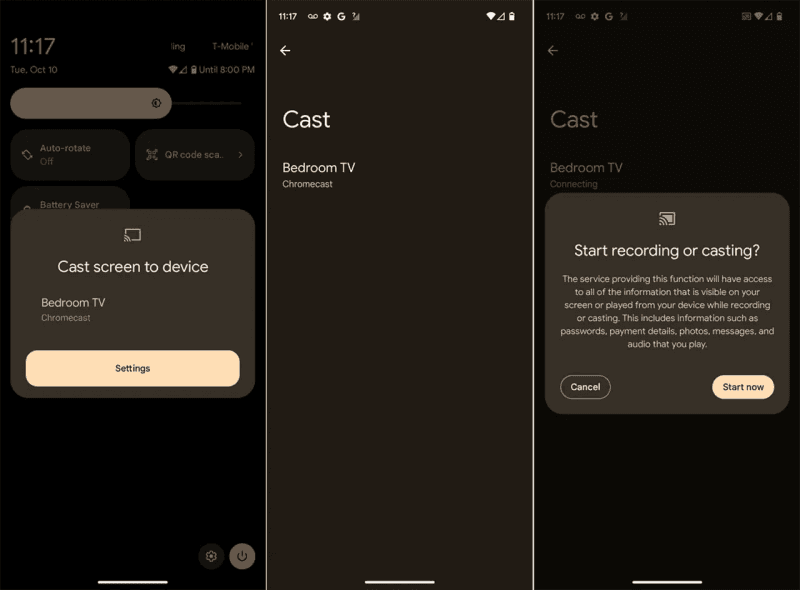
Once Android Auto is active, you can start mirroring your phone’s screen. This shows your apps and content on the car display.
- Go to your phone settings and open the screen mirroring or cast option.
- Select your car’s Android Auto device from the list.
- Confirm the connection on both your phone and car screen.
- Your phone screen should now appear on the car display.
Troubleshooting Connection Issues
If the screen mirroring does not work, check these common problems. Fixing them often solves the issue quickly.
| Problem | Possible Fix |
| No connection detected | Check USB cable or Bluetooth settings |
| Phone screen not showing | Restart phone and car system |
| App permissions denied | Allow permissions in phone settings |
| Slow or laggy display | Use a high-quality USB cable |
Credit: deskin.io
Optimizing Mirroring Experience
Mirroring your phone to Android Auto makes driving safer and easier. It shows your phone screen on the car display.
To get the best experience, adjust settings and use features that fit your needs.
Adjusting Display Settings
Adjust your phone and car screen settings for clear visibility. This helps reduce distractions while driving.
- Set screen brightness to a comfortable level.
- Choose a simple wallpaper or background.
- Use dark mode to reduce glare at night.
- Resize apps or icons for easier touch use.
- Turn off screen timeout or set it longer.
Managing Notifications
Control notifications to avoid distractions. Only allow important alerts during your drive.
| Notification Type | Recommended Setting |
| Messages | Show only from favorite contacts |
| App Alerts | Turn off non-essential app alerts |
| Calls | Allow incoming calls with hands-free answer |
| Reminders | Keep on for important tasks |
Using Voice Commands
Voice commands let you control your phone without touching it. This keeps your focus on the road.
Try these voice commands for a smooth experience:
- “Call [contact name]” to make a call.
- “Play [song or artist]” to listen to music.
- “Navigate to [destination]” for directions.
- “Send message to [contact name]” to text hands-free.
Alternative Mirroring Methods
Mirroring your phone to Android Auto is useful for seeing apps on your car screen. Some phones and cars do not support direct mirroring. There are other ways to mirror your phone to Android Auto.
These alternative methods help you connect your phone and car without built-in mirroring. You can use apps, Wi-Fi, or special compatibility features.
Using Third-party Apps
Third-party apps let you mirror your phone screen to Android Auto. They work by sending your phone display to the car screen. Some apps need a USB cable or Wi-Fi connection.
Popular apps include Screen2Auto and CarStream. These apps show videos, maps, and other apps on Android Auto. Make sure to follow app instructions for setup.
- Download the app on your phone
- Connect your phone to the car via USB or Wi-Fi
- Open the app and start mirroring
Screen Casting Via Wi-fi
Screen casting uses Wi-Fi to show your phone screen on Android Auto. It works if your car supports wireless connections. You can cast videos, maps, and apps without cables.
You need to connect your phone and car to the same Wi-Fi network. Then, use the cast feature in your phone settings or apps. This method is simple and cable-free.
- Connect phone and car to the same Wi-Fi
- Enable screen casting on your phone
- Select your car from the available devices
- Start casting your screen to Android Auto
Mirrorlink Compatibility
MirrorLink is a technology that connects phones to car displays. It works with some Android phones and car models. MirrorLink shows apps like music, navigation, and calls on your car screen.
To use MirrorLink, both your phone and car must support it. You connect the phone with a USB cable. This method gives a stable and simple way to mirror your phone.
- Check if your phone supports MirrorLink
- Make sure your car is MirrorLink compatible
- Connect phone to car using USB cable
- Enable MirrorLink on both devices
Credit: getcartablet.com
Safety Tips While Mirroring
Mirroring your phone to Android Auto can be useful. It helps you access apps and information while driving. Staying safe while using this feature is important.
Here are some tips to ensure your safety. Always focus on the road and use your device responsibly.
Minimizing Driver Distraction
Driver distraction is a major concern. It is important to minimize it while mirroring your phone.
- Only use essential apps while driving
- Set up your apps before you start your journey
- Avoid watching videos or reading texts
Legal Considerations
Laws about phone use while driving vary by location. Knowing the legal restrictions can help you avoid trouble.
Check your local laws about mirroring and phone use. Some areas may have stricter rules.
Maintaining Device Security
Device security is crucial when mirroring. Ensuring your data is safe should be a priority.
- Use a secure Wi-Fi connection
- Keep your device updated
- Avoid downloading unknown apps
Frequently Asked Questions
How Do I Mirror My Phone To Android Auto?
To mirror your phone to Android Auto, connect it via USB or wireless connection. Enable screen projection on your phone settings and use compatible apps for mirroring. Ensure your car’s head unit supports mirroring for a seamless experience.
Is Wireless Mirroring Possible With Android Auto?
Yes, wireless mirroring is possible if both your phone and car support Android Auto wireless. Connect via Bluetooth and Wi-Fi, then enable wireless projection on your phone for easy, cable-free screen mirroring.
Which Apps Work Best For Phone Mirroring On Android Auto?
Apps like Android Auto’s built-in screen projection, Screen Mirroring, and third-party apps such as ApowerMirror work well. Use apps that support Android Auto to ensure smooth mirroring without lag or connectivity issues.
Can I Mirror My Iphone To Android Auto?
IPhones have limited mirroring options with Android Auto. Apple CarPlay is the preferred system for iPhones. However, some third-party apps may offer partial mirroring, but functionality is often limited compared to Android devices.
Conclusion
Mirroring your phone to Android Auto makes driving safer and more fun. You can see apps, maps, and music right on your car screen. Just follow the steps carefully for a smooth setup. Keep your phone charged and connected for the best experience.
Enjoy hands-free control and stay focused on the road. This simple trick helps you stay connected without distractions. Try it out and drive with ease.