
Do you want to see your phone’s screen right on your car’s display? Mirroring your screen in Android Auto can make your drive easier and more fun.
Whether you want to watch videos, use apps, or share your navigation, knowing how to mirror your screen is a game-changer. You’ll learn simple steps to set it up quickly and safely. Keep reading, and you’ll unlock the full potential of Android Auto in no time.
Requirements For Screen Mirroring
Screen mirroring in Android Auto lets you view your phone’s screen on your car display. This helps you use apps and navigation easily.
You need certain devices, apps, and connection types to mirror your screen smoothly. Let’s look at these requirements.
Compatible Devices
Your phone and car must support Android Auto screen mirroring. Most newer Android phones and cars with Android Auto work well.
Not all car models support screen mirroring. Check if your car’s display system allows mirroring features.
- Android phone with Android 6.0 or higher
- Car with Android Auto support
- Car display that supports screen mirroring
- USB port or wireless connection in the car
Necessary Apps
Some apps help you mirror your phone screen to Android Auto. You need to install these apps on your phone.
Android Auto app is essential. Other third-party apps may help with wireless mirroring or extra features.
- Android Auto app from Google Play Store
- Screen mirroring apps like AA Mirror or similar
- Apps must be updated to the latest versions
Wired Vs Wireless Connections
You can mirror your screen using a USB cable or a wireless connection. Each has pros and cons.
Wired connections are more stable but need a cable. Wireless connections offer freedom but may lag sometimes.
- Wired:Uses USB cable, stable and fast connection
- Wireless:Connects via Wi-Fi or Bluetooth, no cables needed
- Wireless may require extra setup and compatible hardware

Credit: www.amazon.com
Preparing Your Android Device
To mirror your screen in Android Auto, you need to prepare your Android device first.
This preparation involves changing some settings and installing apps.
Enable Developer Options
First, unlock Developer Options on your phone. Go to Settings > About phone. Tap the Build number seven times quickly. A message will confirm that Developer Options are enabled.
Activate Usb Debugging
Next, turn on USB Debugging. Open Settings and find Developer Options. Scroll to USB Debugging and switch it on. This lets your phone communicate with your computer or car system.
- Open Settings on your Android device
- Go to Developer Options
- Find USB Debugging and enable it
- Confirm any warning messages
Install Required Applications
You need certain apps to mirror your screen. These apps help connect your phone to Android Auto.
| App Name | Purpose | Where to Get |
| Android Auto | Main app to connect phone and car | Google Play Store |
| Screen Mirroring App | Mirrors phone screen on car display | Google Play Store or trusted sources |
| USB Drivers | Allows proper USB connection | Phone manufacturer’s website |
Setting Up Android Auto
Android Auto lets you use your phone safely while driving. You can mirror your screen to see apps on your car’s display.
This guide helps you connect your phone and adjust settings for the best experience.
Connect To Your Car
First, connect your phone to your car using a USB cable or Bluetooth. USB gives a more stable connection.
- Check your car supports Android Auto.
- Use a high-quality USB cable.
- Plug your phone into the car’s USB port.
- Allow permissions on your phone when prompted.
- Open the Android Auto app if it does not start automatically.
Configure Display Settings
Adjust the screen settings to mirror your phone display correctly on your car.
| Setting | What It Does |
| Screen Resolution | Matches phone and car screen sizes. |
| Brightness | Adjusts display brightness for day or night. |
| Screen Timeout | Sets how long the screen stays active. |
| Mirror Mode | Enables full phone screen mirroring. |
Troubleshooting Connection Issues
If the screen does not mirror, check these common issues.
- Make sure your phone’s Android Auto app is updated.
- Restart your phone and car system.
- Try a different USB cable or port.
- Check that USB debugging is off in developer options.
- Ensure your car’s infotainment system supports screen mirroring.
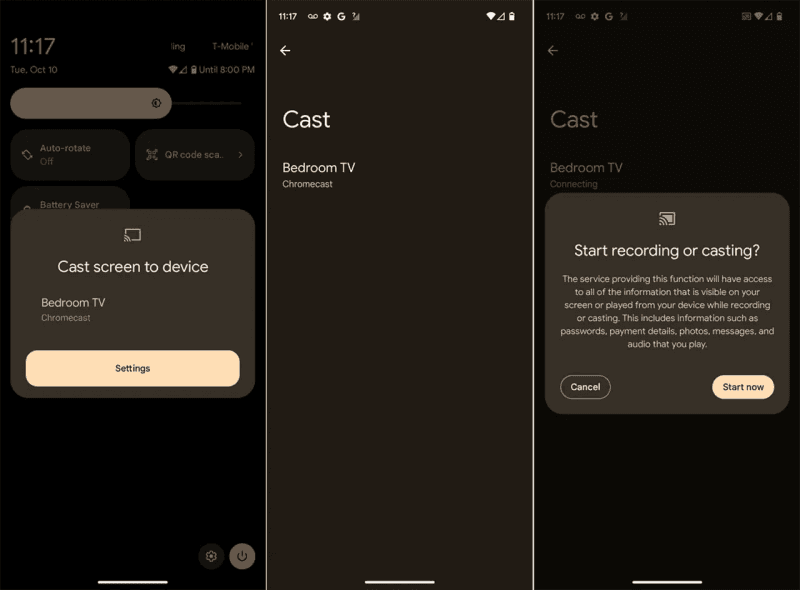
Credit: deskin.io
Steps To Mirror Screen Using Usb
Screen mirroring lets you show your phone display on your car screen. Using a USB cable makes the connection stable and fast.
This guide explains how to mirror your Android phone to Android Auto using a USB connection.
Connect Phone Via Usb
First, use a USB cable to connect your Android phone to your car’s USB port. Use a good quality cable for best results.
Make sure your phone is unlocked and the screen is on. Your car should detect the phone automatically.
- Plug the USB cable into your phone
- Connect the other end to the car’s USB port
- Unlock your phone screen
- Wait for the car to recognize the phone
Launch Mirroring App
Open the mirroring app on your phone. Some phones have built-in screen mirroring options or you can use third-party apps.
Start the mirroring function inside the app to send your phone screen to the car display.
- Open the mirroring app on your phone
- Allow permissions if asked
- Tap to start screen mirroring
- Wait for the connection to establish
Adjust Display On Car Screen
After mirroring starts, adjust the display settings on your car screen. Change the brightness or zoom to fit the screen.
Use your car’s controls to make the screen easier to see and operate while driving.
- Use car screen settings to adjust brightness
- Zoom in or out for a better fit
- Check for lag or delay
- Make sure controls respond well
Steps To Mirror Screen Wirelessly
Mirroring your phone screen to Android Auto can improve your driving experience. You can do this wirelessly using different methods. This guide explains simple ways to mirror your screen without cables.
Follow these steps carefully to connect your devices and keep a stable connection. This way, you can enjoy apps and media safely while driving.
Pairing Devices Via Bluetooth Or Wi-fi
First, you need to pair your phone with your car system. Both Bluetooth and Wi-Fi can be used to connect devices for screen mirroring.
- Turn on Bluetooth or Wi-Fi on your phone and car display.
- Open Android Auto settings on your phone.
- Search for your car’s device name and select it.
- Confirm the pairing code shown on both screens.
- Wait for the connection to establish before starting screen mirroring.
Using Wireless Mirroring Apps
Some apps help mirror your phone screen to Android Auto without cables. These apps use Wi-Fi or Bluetooth to send your screen content to the car display.
| App Name | Main Feature | Connection Type |
|---|---|---|
| ScreenCast | Mirrors screen in real time | Wi-Fi |
| CarLink | Easy setup for Android Auto | Bluetooth |
| Wireless Mirror | Supports video and audio | Wi-Fi |
Optimizing Connection Stability
A stable connection is key for smooth mirroring. Follow these tips to avoid interruptions during use.
- Keep your phone close to the car display.
- Turn off other devices that use Wi-Fi or Bluetooth nearby.
- Close apps running in the background on your phone.
- Make sure your phone battery is charged or connected to power.
- Restart devices if the connection drops or lags.
Common Problems And Fixes
Mirroring your screen in Android Auto can be tricky. Many users face common problems. Here are some issues and how to fix them.
Follow these tips to improve your experience. Learn to solve issues like screen lag, app compatibility, and connection drops.
Screen Lag And Latency
Screen lag can ruin your driving experience. It causes delay in display updates. This can be dangerous when using navigation.
- Check for app updates regularly
- Ensure your phone’s battery is above 20%
- Disable battery saver mode
App Compatibility Issues
Not all apps work well with Android Auto. Some apps may not display correctly or function as expected. This can be frustrating.
| App Name | Status |
| Spotify | Compatible |
| Netflix | Not Compatible |
| Google Maps | Compatible |
Connection Drops
Connection drops can disrupt your driving. They may cause your screen to go blank. This happens if the cable is loose or damaged.
- Use a high-quality USB cable
- Ensure the cable is properly connected
- Try restarting your phone and car system
Safety Tips While Using Screen Mirroring
Screen mirroring in Android Auto can be helpful. But it’s important to stay safe while using it. Here are some tips to consider.
Avoiding Distractions
Distractions can lead to accidents. Keep your eyes on the road. Use screen mirroring only when the car is stopped.
- Avoid checking messages while driving
- Do not watch videos while in motion
- Set navigation before starting your journey
Legal Considerations
Different places have different laws about screen use in cars. Make sure you know the laws where you drive. This can help you avoid fines.
Always check the local regulations before using screen mirroring. This is crucial to stay compliant with road safety laws.
Maintaining Focus On Driving
Stay focused while driving. Screen mirroring should not take away your attention from the road. Make sure your mind is on driving safely.
| Action | Focus Level |
| Using GPS | High |
| Listening to music | Medium |
| Watching videos | Low (Not Recommended) |

Credit: www.youtube.com
Frequently Asked Questions
How Can I Mirror My Android Screen To Android Auto?
You can mirror your Android screen to Android Auto using third-party apps like AA Mirror. Connect your phone via USB, enable developer options in Android Auto, and follow app instructions for seamless screen mirroring.
Is Screen Mirroring Safe While Driving With Android Auto?
Screen mirroring can distract drivers and is not recommended while driving. Use Android Auto’s native apps for safer navigation and control. Always prioritize road safety and avoid interacting with mirrored content while driving.
Which Apps Support Screen Mirroring On Android Auto?
Apps like AA Mirror and CarStream support screen mirroring on Android Auto. These apps allow streaming videos and mirroring your phone’s display. Ensure compatibility with your device and follow installation guidelines carefully.
Do I Need Special Hardware For Android Auto Screen Mirroring?
No special hardware is required. Screen mirroring works with your existing Android phone and car’s Android Auto-compatible system. A USB cable and compatible mirroring apps are sufficient to start screen sharing.
Conclusion
Screen mirroring in Android Auto makes driving more connected and fun. It lets you see your phone’s apps safely on your car’s display. Follow the steps carefully for a smooth setup. Keep your phone updated and use good cables. Enjoy hands-free control and easy access to your favorite apps.
Stay safe and focused on the road while using this feature. Try it out and see how it fits your driving style. Simple, useful, and convenient for every Android user.