
Are you frustrated because your Android Auto isn’t showing up on your car’s screen? You’re not alone.
Many drivers rely on Android Auto to stay connected and navigate safely, but when it suddenly stops working, it can throw your whole drive off. You’ll discover the common reasons why your Android Auto might not display and simple fixes you can try right now.
Keep reading to get your system back on track quickly and enjoy a smoother, safer ride.
Common Causes Of Display Issues
Android Auto may not show on your car screen for several reasons. Knowing the common causes helps you fix the problem faster.
Display issues often come from connection, compatibility, software, or hardware problems. Each needs a different approach to solve.
Connection Problems
Your phone must connect properly to the car for Android Auto to display. Weak or lost connections cause the screen to stay blank.
Check if the USB cable is securely plugged in or if your phone is paired via Bluetooth. A loose connection can stop the display.
- Loose USB or AUX cables
- Disabled Bluetooth or Wi-Fi
- Car not recognizing the phone
- Phone screen locked or in sleep mode
Compatibility Issues
Not all cars and phones support Android Auto. Older models may not work well or at all with this feature.
Make sure your car’s infotainment system and your phone both support Android Auto. Updates can also affect compatibility.
- Old car infotainment systems
- Phones with outdated Android versions
- Missing Android Auto app updates
- Regional restrictions on Android Auto features
Software Glitches
Android Auto or your phone’s software can have bugs. These glitches may stop the display from working properly.
Restarting your phone or updating the app often fixes small software problems. Resetting the car system can help too.
- Outdated Android Auto app
- Phone system bugs or crashes
- Car software needing updates
- Conflicts with other apps
Faulty Cables Or Ports
Damaged USB cables or car ports can stop Android Auto from showing on the screen. Wear and tear is a common cause.
Try using a different cable or port to see if the display works. Cheap or broken cables often cause connection failures.
- Frayed or broken USB cables
- Dirt or damage in USB ports
- Using non-certified cables
- Loose or worn connectors

Credit: www.reddit.com
Check Your Phone And Car Settings
Android Auto may not show on your car screen if settings are incorrect. Check both your phone and car settings carefully.
This guide covers common settings to verify for Android Auto to work properly.
Enable Android Auto On Phone
Make sure Android Auto is turned on in your phone settings. Without this, your phone cannot connect to the car screen.
- Go to your phone’s Settings app.
- Search for “Android Auto” and open the option.
- Switch on the Android Auto toggle.
- Connect your phone to the car using a USB cable or Bluetooth.
Allow Permissions
Android Auto needs permission to access your phone’s features. Check if you allowed all required permissions.
| Permission | Purpose |
|---|---|
| Location | Helps with navigation and maps |
| Microphone | Allows voice commands |
| Contacts | Enables calling and messaging |
| Phone | Supports calling features |
Car Infotainment Settings
Your car’s infotainment system may block Android Auto if settings are wrong. Check these settings in the car menu.
- Open the car’s infotainment system menu.
- Find the Android Auto or smartphone integration option.
- Make sure Android Auto is enabled.
- Check if USB or Bluetooth connection is allowed for Android Auto.
- Restart the car system if needed.
Update Android Auto App
Using an old version of Android Auto can cause display problems. Keep the app updated for best results.
- Open Google Play Store on your phone.
- Search for “Android Auto.”
- If an update is available, tap “Update.”
- Restart your phone after updating.
Troubleshoot Connection Problems
Android Auto may not show on your car screen due to connection issues. Fixing these problems can bring the system back quickly.
Try simple steps to check your phone and car connection. These tips can solve most display problems.
Use A Different Usb Cable
Sometimes the USB cable is the problem. A broken or low-quality cable may stop Android Auto from working.
Use a new or known good USB cable. Make sure it supports data transfer, not just charging.
Switch Usb Ports
Your car may have multiple USB ports. Some ports only charge and do not support Android Auto.
Try plugging the cable into another USB port in your car. This can fix connection issues fast.
Restart Phone And Car System
Restarting your devices can clear temporary errors. Turn off your phone and car system fully.
After a few seconds, turn both back on. This simple step often fixes Android Auto display problems.
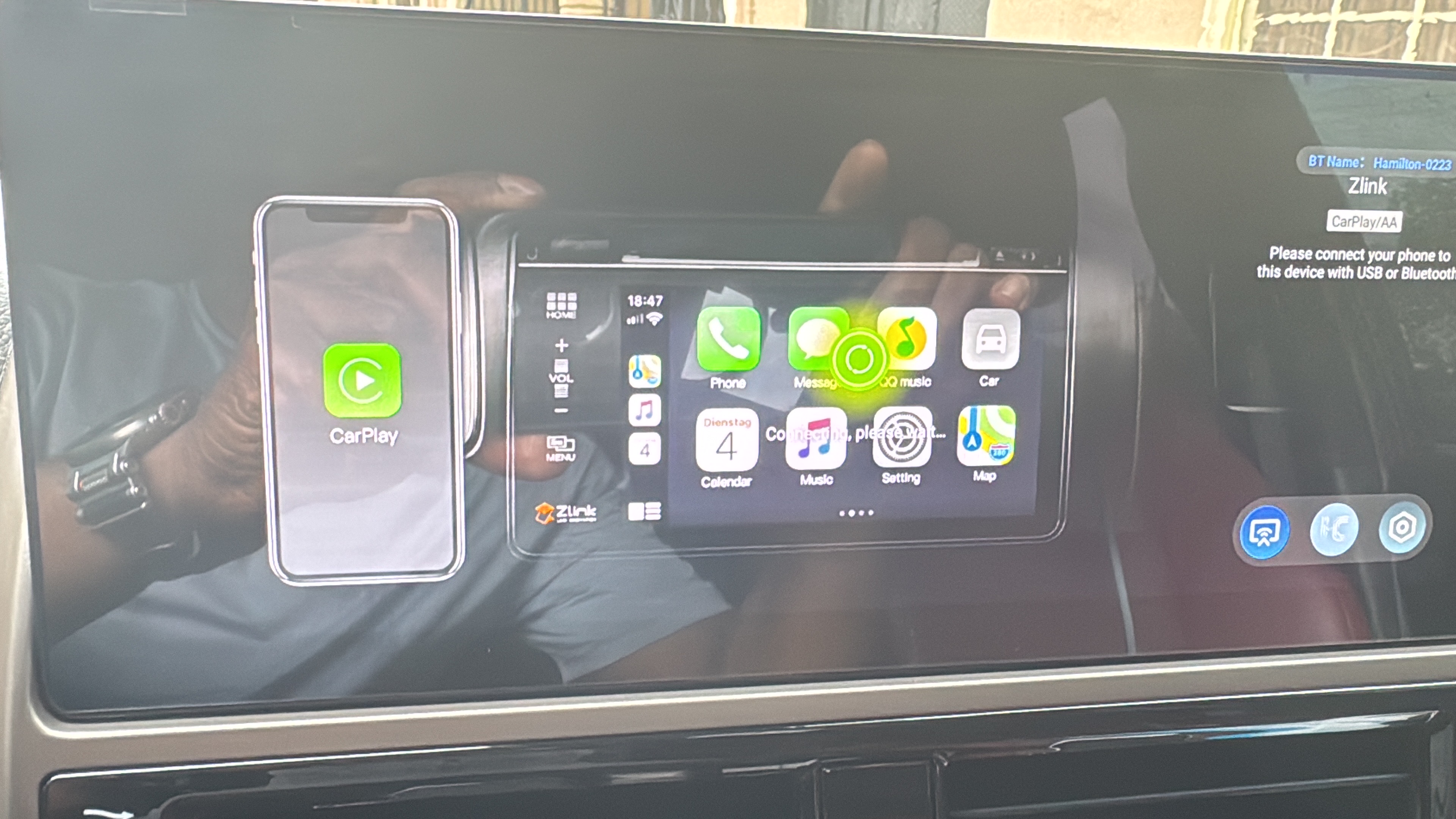
Try Wireless Android Auto
If your car supports wireless Android Auto, try connecting without a cable. This avoids USB port or cable issues.
Make sure your phone’s Wi-Fi and Bluetooth are on. Follow your car’s instructions to pair wirelessly.
Credit: www.hamiltonmotorcompany.com
Update Software And Firmware
Android Auto may not show on your car screen if software or firmware is outdated. Updating helps fix bugs and improve compatibility.
Check updates for your phone, car system, and the Android Auto app to ensure everything works smoothly.
Update Phone Os
Your phone’s operating system must be current for Android Auto to work well. Updates often fix issues that block display on the car screen.
- Go to Settings on your phone
- Tap System or About phone
- Select Software update
- Download and install any available updates
Update Car Infotainment System
Your car’s infotainment system uses firmware that may need updates. New firmware improves Android Auto support and fixes connection problems.
| Car Brand | How to Check Updates | Notes |
| Ford | Use Sync AppLink or visit dealer | Requires USB or Wi-Fi |
| Toyota | Use Entune app or dealer service | May need dealer assistance |
| Honda | Check system menu or dealer | Firmware updates vary by model |
Check For Android Auto Updates
Android Auto app updates improve performance and fix bugs. Always use the latest version to avoid display issues.
To update Android Auto:
- Open Google Play Store on your phone
- Search for Android Auto
- If an update is available, tap Update
- Restart your phone and reconnect to your car
Reset Android Auto And Car System
Sometimes Android Auto does not show up on the car screen. Resetting the system can fix this issue.
This guide covers simple steps to clear Android Auto data and reset your car system.
Clear Android Auto Cache And Data
Clearing the app cache and data removes temporary files and resets settings. This can solve display problems.
- Open your phone’s Settings app.
- Go to Apps or Application Manager.
- Find and tap on Android Auto.
- Tap Storage.
- Choose Clear Cache and then Clear Data.
- Restart your phone and try connecting again.
Unpair And Re-pair Device
Unpairing and pairing your phone again can fix connection errors between the phone and car system.
- Open Bluetooth settings on your phone.
- Find your car’s name in paired devices.
- Select it and tap Unpair or Forget.
- Turn off Bluetooth on both devices briefly.
- Turn Bluetooth back on and pair your phone with the car again.
- Open Android Auto to check if it displays correctly.
Factory Reset Infotainment System
Resetting the car’s infotainment system restores original settings. This can clear system glitches.
| Action | Description |
| Backup Data | Save important settings or contacts before reset. |
| Access Settings | Go to the car’s infotainment system settings menu. |
| Find Reset Option | Locate the factory reset or system reset option. |
| Confirm Reset | Follow prompts to confirm and start the reset. |
| Reconnect Phone | Pair your phone again after the reset completes. |
Advanced Fixes And Support
If your Android Auto is not displaying on your car screen, advanced fixes can help. These solutions often require checking for bugs or contacting support.
Start by investigating common issues. Sometimes, these problems are related to known bugs or compatibility issues.
Check For Known Bugs
Known bugs can prevent Android Auto from displaying. Check online forums and official channels for updates.
Developers often release patches to fix these bugs. Keep your Android Auto app updated to avoid issues.
- Visit the Android Auto support site for known issues
- Join Android Auto forums for community solutions
- Update your app regularly for bug fixes
Contact Car Manufacturer
Your car’s system may have compatibility issues. Contact the car manufacturer for assistance.
Manufacturers can provide specific updates or instructions. They may know if your model has known issues with Android Auto.
- Call the car manufacturer’s support line
- Check the car’s website for software updates
- Visit a dealership for technical support
Reach Out To Android Auto Support
If the issue persists, contact Android Auto support. They can offer technical help and troubleshooting steps.
Support teams have the tools to diagnose deeper problems. They may ask for app logs or device details.
- Use the Android Auto app to report a problem
- Email Android Auto support with your issue
- Check the Android Auto website for contact options
Credit: www.androidpolice.com
Frequently Asked Questions
Why Is Android Auto Not Showing On My Car Screen?
Android Auto may not show due to faulty USB cables, outdated apps, or incompatible car systems. Check connections, update the app, and verify car compatibility to fix this issue.
How Can I Fix Android Auto Connection Problems?
Restart your phone and car system. Use a high-quality USB cable and enable Android Auto in car settings. Also, update your phone’s software and the Android Auto app.
Does My Car Support Android Auto Display?
Not all cars support Android Auto. Check your car’s user manual or manufacturer website for compatibility. Ensure your infotainment system is updated for the latest Android Auto features.
Why Won’t Android Auto Launch Automatically?
Android Auto may not launch if it’s disabled in settings or the phone is locked. Enable Android Auto in your phone’s app settings and unlock your phone when connecting.
Conclusion
Android Auto not showing on your car screen can feel frustrating. Check your phone and car connections first. Make sure your USB cable works well. Keep your Android Auto app updated. Restart your phone and car system often helps. Sometimes, adjusting settings fixes the problem quickly.
Small steps can bring back the display. Stay patient and try these simple tips. Your car screen will show Android Auto again soon.