
Are your Tesla’s side mirrors folding in and out automatically, and it’s starting to feel more annoying than helpful? You’re not alone.
Many Tesla owners want to take control and stop the auto mirror fold feature from activating when it’s not needed. Imagine saving yourself from the hassle of mirrors folding every time you park or unlock your car. In this guide, you’ll learn exactly how to turn off auto mirror fold on your Tesla, step by step.
Keep reading, and you’ll regain control over your mirrors in no time.
Locate The Mirror Controls
To turn off the auto mirror fold on your Tesla, you first need to find the mirror controls. These controls let you adjust and manage your side mirrors.
Knowing where these controls are helps you change settings quickly. This guide shows you how to locate and identify the right options.
Find The Mirror Adjustment Panel
The mirror adjustment panel is usually on the driver’s side door. It includes buttons or a joystick to move the mirrors.
- Look near the window controls on the door armrest.
- Check for icons that look like side mirrors.
- Some Teslas have a touchscreen option for mirror control.
Identify Auto Fold Settings
Once you find the mirror controls, look for the auto fold feature. This setting folds the mirrors automatically when you lock the car.
| Setting | Description |
| Auto Fold | Automatically folds mirrors when locking the vehicle |
| Manual Fold | Requires you to fold mirrors by hand |
| Disable Auto Fold | Stops the mirrors from folding automatically |
To turn off auto fold, you can either press a button or toggle the setting on the screen. This stops the mirrors from folding every time you lock your Tesla.
Access The Vehicle Settings
To turn off the Auto Mirror Fold on your Tesla, you first need to access the vehicle settings. These settings allow you to control many features of your car.
Using the touchscreen inside your Tesla makes it easy to find and adjust these settings. Follow the steps below to navigate through the menus.
Use The Touchscreen Interface
The touchscreen is the main way to control your Tesla’s features. It shows all the options you can change.
Start by sitting in the driver’s seat and turning on the car. Then tap the car icon at the bottom of the screen to open the settings menu.
Navigate To Mirrors Menu
Once you open the settings menu, look for the “Mirrors” option. This menu lets you control the mirror settings.
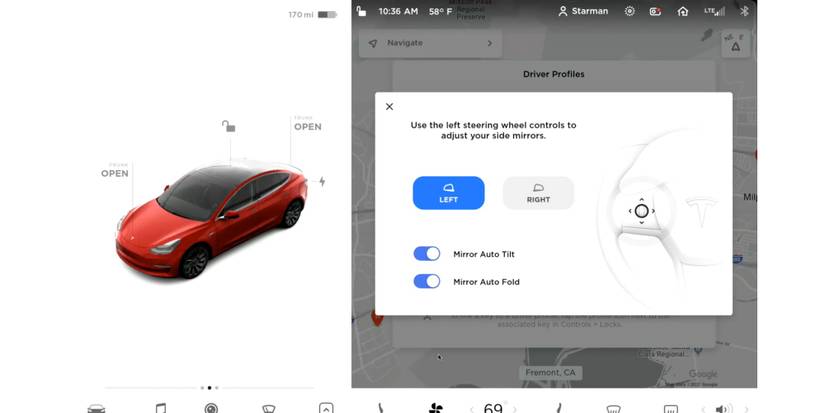
Inside the Mirrors menu, you will find the Auto Fold Mirror feature. You can switch it off by tapping the toggle button next to it.
Disable Auto Mirror Fold
Auto mirror fold is a feature in Tesla cars that folds the side mirrors automatically. Some drivers want to turn this feature off for more control. This guide shows how to disable the auto mirror fold easily.
Turning off the auto fold helps prevent mirrors from folding when not needed. It also avoids damage in tight spaces.
Toggle The Auto Fold Feature Off
Start by sitting inside your Tesla and turning on the main screen. Access the vehicle settings menu to find the mirror options.
Look for the auto fold mirrors option. It is usually under the “Locks” or “Mirrors” section in settings.
- Tap on the settings icon on the touchscreen
- Select “Locks” or “Mirrors” from the menu
- Find “Auto Fold Mirrors” option
- Toggle the switch to the off position
Confirm Changes
After toggling off the auto fold feature, exit the settings menu. Test the mirrors by locking and unlocking the car.
The mirrors should no longer fold automatically. If they still fold, repeat the steps to ensure the feature is off.
Credit: screenrant.com
Verify Mirror Position
It’s essential to ensure your Tesla’s mirrors are correctly positioned. Proper mirror alignment enhances your driving safety.
Checking the mirror position manually can help you avoid blind spots. It’s important for a clear rear view.
Manually Adjust Mirrors
Start by sitting in the driver’s seat. Adjust the mirrors so you can see the road behind you.
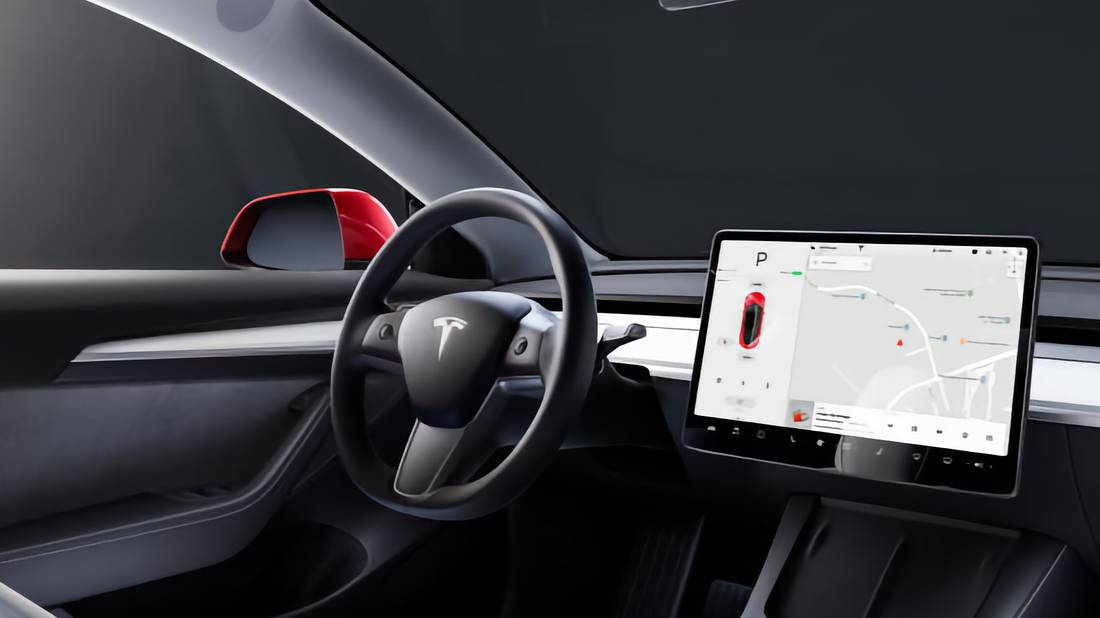
Use the controls on the door panel. Tilt the mirrors up or down, and side to side, to get the best view.
- Left mirror shows a small part of your car
- Right mirror covers a wide road view
- Both mirrors eliminate blind spots
Test Auto Fold Function
After adjusting, test the auto fold feature. This feature protects mirrors when parking in tight spaces.
Activate the auto fold by locking your car. Ensure mirrors fold and unfold smoothly without issues.
| Action | Result |
| Lock the car | Mirrors fold in |
| Unlock the car | Mirrors unfold |
Troubleshooting Common Issues
Turning off the Auto Mirror Fold feature on your Tesla should be easy. Sometimes, the mirrors do not respond or the settings do not save. These issues can be fixed with simple steps.
Knowing what to do helps you avoid frustration. This guide covers common problems and quick fixes.
Mirror Not Responding
If your Tesla mirrors do not fold or unfold when you turn off Auto Mirror Fold, the system may be unresponsive. This can happen due to software glitches or hardware problems.
Try these steps to fix it:
- Restart your Tesla’s touchscreen by holding both scroll wheels.
- Check if the mirrors are manually stuck or blocked.
- Update your Tesla software to the latest version.
- Reset mirror settings in the car’s menu.
- If the problem continues, contact Tesla service for help.
Settings Not Saving
Sometimes your changes to Auto Mirror Fold settings do not save after you turn off the car. This can be annoying if you want the mirrors to stay folded or unfolded.
Here are ways to fix settings not saving:
- Make sure you press the save button after changing mirror settings.
- Check if your Tesla user profile is active and linked to the settings.
- Clear any saved preferences and try setting up the mirrors again.
- Update your Tesla’s firmware to avoid bugs.
- If it still fails, reboot the car system or visit a Tesla center.
Credit: screenrant.com
Alternative Methods
Turning off the auto mirror fold on a Tesla can be done in more than one way. Some drivers prefer using their phone app, while others use voice commands.
Both methods offer easy control over the mirror settings without needing to touch the car’s physical buttons.
Using Mobile App Controls
The Tesla mobile app lets you control many car features, including the mirror fold option. You can disable auto-fold with just a few taps.
- Open the Tesla app on your smartphone.
- Go to the ‘Controls’ section.
- Select ‘Mirrors’ from the menu.
- Toggle off the ‘Auto Fold’ option.
- Confirm your choice if prompted.
Voice Command Options
Using voice commands is a hands-free way to turn off auto mirror fold. Speak clearly to the car’s system to adjust settings.
| Voice Command | Action |
| “Turn off auto mirror fold” | Disables automatic folding of side mirrors |
| “Disable mirror auto fold” | Stops mirrors from folding automatically |
| “Mirror settings off auto fold” | Turns off the auto fold feature in mirror settings |
Frequently Asked Questions
How Do I Disable Auto Mirror Fold On Tesla?
To disable auto mirror fold, go to your Tesla’s touchscreen. Navigate to Controls > Mirrors. Toggle off the “Auto-Fold Mirrors” option. This stops mirrors from folding automatically when locking or unlocking.
Can I Manually Fold Tesla Mirrors After Disabling Auto Fold?
Yes, you can still manually fold your Tesla mirrors. Simply press and hold the mirror adjustment button on the touchscreen. This overrides the auto-fold setting temporarily for manual control.
Does Turning Off Auto Mirror Fold Affect Tesla’s Security?
Turning off auto mirror fold does not reduce security. It only stops mirrors from folding automatically. Your Tesla’s alarm and lock systems remain fully functional.
Will Auto Mirror Fold Turn Back On After Software Updates?
Auto mirror fold settings typically remain unchanged after updates. However, it’s good to check settings post-update. Tesla occasionally resets some preferences during major updates.
Conclusion
Turning off the auto mirror fold on your Tesla is simple and quick. You just need to follow a few easy steps in the settings menu. This helps you control your mirrors better and avoid surprises. Remember, changing this setting does not affect driving safety.
Feel free to adjust it anytime to suit your needs. Keeping your Tesla mirrors as you like makes your driving experience more comfortable. Try these steps today and enjoy full control over your car’s features.