
Have you ever wanted to see your phone’s screen right on your car’s display? Imagine accessing your favorite apps, videos, or maps without fumbling with your phone while driving.
Mirroring your screen to Android Auto can make this possible, giving you a safer and smarter driving experience. In this guide, you’ll learn simple steps to mirror your screen effortlessly. Keep reading, and you’ll discover how to unlock the full potential of your Android Auto setup today.
Requirements For Screen Mirroring
Screen mirroring to Android Auto lets you show your phone’s display on your car screen. It helps you use apps safely while driving.
To mirror your screen, you need certain devices, apps, and connection methods. These requirements make sure the process works well.
Compatible Devices
Not all phones and cars support screen mirroring with Android Auto. You need compatible devices to make it work.
- Android phones running Android 10 or higher
- Cars or head units that support Android Auto
- Phones with USB-C or wireless Android Auto support
- Display screens that allow video input from phones
Necessary Apps And Tools
Certain apps help you mirror your phone screen to Android Auto. Tools and cables may also be needed.
- Android Auto app installed on your phone
- Screen mirroring apps like AA Mirror or Screen2Auto
- USB cable for wired connection
- Wi-Fi or Bluetooth for wireless connection
Connection Methods
You can connect your phone to Android Auto by wire or wirelessly. Each way has its own setup needs.
- Wired connection using a USB cable for stable mirroring
- Wireless connection via Wi-Fi or Bluetooth for convenience
- Use car settings to enable Android Auto and screen mirroring
- Ensure phone and car are paired correctly before starting

Credit: www.amazon.com
Preparing Your Android Device
To mirror your screen to Android Auto, you need to get your Android device ready first. This involves adjusting some settings and installing apps.
Follow these steps carefully to prepare your phone for screen mirroring with Android Auto.
Enable Developer Options
Developer Options lets you access advanced features on your Android device. It is hidden by default to protect users.
To enable Developer Options, go to your phone’s Settings, then About Phone. Tap the Build Number 7 times. You will see a message saying Developer Options is enabled.
- Open Settings on your Android device
- Go to About Phone
- Tap Build Number 7 times
- Enter your PIN if asked
- Developer Options will appear in Settings
Turn On Usb Debugging
USB Debugging allows your phone to communicate with your car’s system. It is needed for screen mirroring to work properly.
After enabling Developer Options, find USB Debugging inside that menu. Turn it on and confirm any pop-up messages.
- Open Settings
- Go to Developer Options
- Find USB Debugging
- Toggle it on
- Accept any warning prompts
Install Required Apps
You need specific apps to make screen mirroring work with Android Auto. These apps help connect your phone to your car.
Search for screen mirroring or Android Auto companion apps in the Google Play Store. Install the apps recommended for your device and car model.
- Open Google Play Store
- Search for “Android Auto” or “screen mirroring”
- Choose trusted apps with good reviews
- Install the apps
- Follow any setup instructions
Connecting Via Usb Cable
Mirroring your phone screen to Android Auto lets you use apps on your car display. Connecting through a USB cable is a simple way to do this.
This guide will show you how to connect your phone using a USB cable and fix common USB problems.
Step-by-step Connection Guide
Follow these steps to mirror your screen to Android Auto using a USB cable.
- Use a good quality USB cable that supports data transfer.
- Plug one end of the cable into your phone.
- Plug the other end into your car’s USB port.
- Turn on your car and allow Android Auto to launch.
- On your phone, unlock the screen and grant permission to connect.
- Open the screen mirroring app if needed.
- Wait a few seconds for the phone screen to appear on the car display.
Troubleshooting Usb Issues
Sometimes the USB connection may not work. Try these tips to fix common problems.
- Check if the USB cable is damaged or loose. Replace if needed.
- Make sure your phone is unlocked and screen is on.
- Change the USB port in your car if there are multiple ports.
- Enable USB debugging in your phone’s developer settings.
- Restart your phone and car system.
- Update Android Auto and your phone’s system to the latest version.
- Try a different USB cable known for data transfer.
Connecting Wirelessly
Mirroring your screen to Android Auto lets you see your phone on your car display. You can do this without wires by using wireless connections.
Wireless screen mirroring makes it easier to use apps and navigation while driving. It keeps your car dashboard clean from cables.
Setting Up Wi-fi Connection
To mirror your screen wirelessly, your phone and car must connect over the same Wi-Fi network. This connection is fast and stable.
First, check if your car supports Wi-Fi connection for Android Auto. Turn on Wi-Fi on both devices and connect to the same network.
- Go to your phone Settings and open Wi-Fi.
- Turn on Wi-Fi and choose the car’s network name.
- On your car display, enable Wi-Fi and connect to your phone.
- Open Android Auto on your phone to start screen mirroring.
Using Third-party Wireless Apps
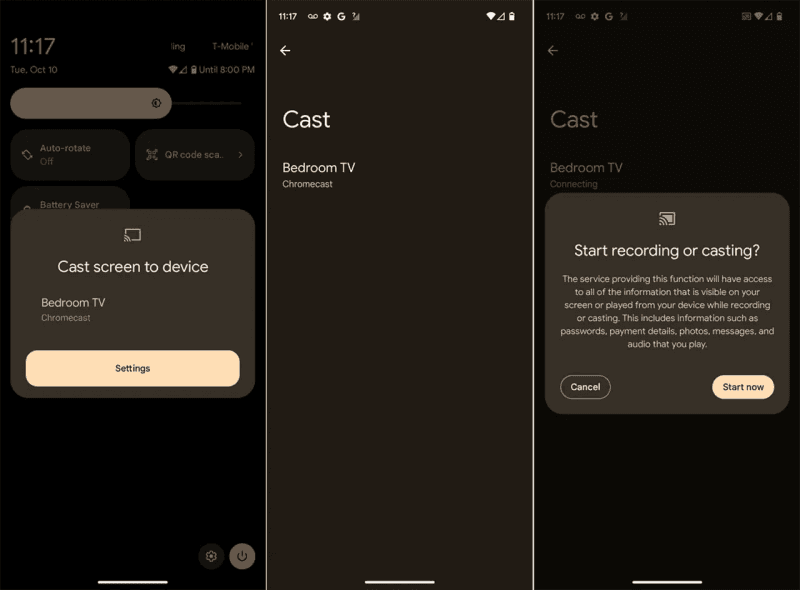
You can use apps to mirror your screen if your car does not support wireless Android Auto. These apps create a wireless link between phone and car.
Popular apps allow screen sharing over Wi-Fi or Bluetooth. They help you display phone content on the car screen without cables.
- Download a wireless screen mirroring app from the Play Store.
- Connect your phone and car to the same Wi-Fi network.
- Open the app and follow instructions to pair devices.
- Start mirroring your phone screen to Android Auto.
Optimizing Display Settings
Mirroring your screen to Android Auto needs clear and smooth visuals. Adjusting display settings helps make your experience better. This guide focuses on optimizing resolution and audio output.
Fine-tuning these settings ensures your device and car screen work well together. It also helps avoid lag and keeps sound clear during screen mirroring.
Adjusting Screen Resolution
Screen resolution affects how sharp and clear the mirrored image looks. Choose a resolution that matches your car’s display for the best results. If the image looks stretched or blurry, try changing the resolution settings.
- Open your phone’s display settings.
- Find the screen mirroring or casting options.
- Select the resolution that matches your car’s screen (usually 720p or 1080p).
- Test the display for clarity and adjust if needed.
- Lower resolution if the image lags or freezes.
Managing Audio Output
Audio output is important for a good driving experience. You want sound to come through your car speakers without delay or echo. Setting the right audio output helps avoid confusion and keeps communication clear.
| Audio Setting | Description | Recommended Action |
|---|---|---|
| Bluetooth Output | Sound plays through car’s Bluetooth system. | Use for wireless audio and hands-free calls. |
| Wired Connection | Sound plays through USB or AUX cable. | Use for stable and high-quality audio. |
| Phone Speaker | Sound plays on the phone’s own speaker. | Avoid during driving for safety. |
Credit: deskin.io
Common Problems And Fixes
Mirroring your screen to Android Auto can be useful. It helps in accessing apps and navigation easily. But sometimes, issues arise.
Here, we will discuss common problems with screen mirroring. We will also look at ways to fix them.
Connection Drops
Connection drops can be frustrating. This usually happens due to weak signals or faulty cables.
Make sure your device is close to the car’s head unit. Use a high-quality USB cable for a stable connection.
- Check if your USB cable is damaged
- Ensure Wi-Fi and Bluetooth are turned on
- Keep your device’s software updated
App Compatibility Issues
Not all apps work with Android Auto. Some apps may not be compatible, leading to errors.
Check the Android Auto app list to see if your app is supported. Update your apps regularly to avoid issues.
- Use apps that are compatible with Android Auto
- Regularly update the Android Auto app
- Check app permissions in settings
Display Lag And Delay
Display lag can cause delays in screen mirroring. This can be due to slow processing speeds or outdated software.
Ensure your device has enough storage and processing power. Close unnecessary apps running in the background.
- Clear cache and unused files
- Restart your device to refresh the system
- Ensure your device software is up-to-date
Safety Tips While Using Android Auto
Using Android Auto can make driving more convenient. It helps you access apps safely. But it’s important to follow safety tips.
Here are some guidelines to ensure safety while mirroring your screen to Android Auto.
Avoiding Distractions
Distractions while driving can be dangerous. Android Auto reduces these distractions.
- Use voice commands to control apps
- Set up your navigation before starting your trip
- Keep notifications to a minimum
Legal Considerations
Different places have rules about using screens in cars. It’s important to know these laws to avoid fines.
| Country | Screen Use Law |
| USA | Hands-free use only |
| UK | Device must be securely mounted |
| Australia | Use only when parked |

Credit: www.reddit.com
Frequently Asked Questions
How Do I Mirror My Phone Screen To Android Auto?
To mirror your phone screen to Android Auto, use apps like Screen2Auto or AA Mirror. Connect your phone via USB or Wi-Fi, then enable screen mirroring in the app settings. Ensure your car supports Android Auto and the app is compatible with your phone.
Is Screen Mirroring Safe While Driving With Android Auto?
Screen mirroring can be distracting and unsafe while driving. Use it only when the vehicle is parked. Android Auto prioritizes safety by limiting certain functions during driving. Always follow local laws and avoid using mirrored screens for activities that divert your attention.
Can I Mirror Any App To Android Auto Screen?
Not all apps can be mirrored to Android Auto. Only compatible apps or those allowed by mirroring apps will display. Streaming video or navigation apps may work, but some restrictions apply to ensure driver safety. Check app compatibility before attempting to mirror.
What Devices Support Android Auto Screen Mirroring?
Most Android phones running Android 6. 0 or higher support Android Auto. Your car or head unit must also support Android Auto. Some third-party apps require specific phone models or software versions for screen mirroring. Confirm your devices’ compatibility for best results.
Conclusion
Mirroring your screen to Android Auto makes driving more fun and safe. You can see apps and maps right on your car’s display. Just follow easy steps to connect your phone. This helps keep your focus on the road. Try it out and enjoy a better driving experience.
Stay safe and enjoy your journey!