
Have you ever wished you could see your phone’s screen right on your car’s display? Imagine having your favorite apps, maps, or videos all visible while you drive—without reaching for your phone.
Mirroring your screen on Android Auto makes this possible, and it’s easier than you think. In this guide, you’ll learn simple steps to connect your device and enjoy a smarter, safer driving experience. Keep reading to discover how you can transform your car’s dashboard into a powerful extension of your phone.
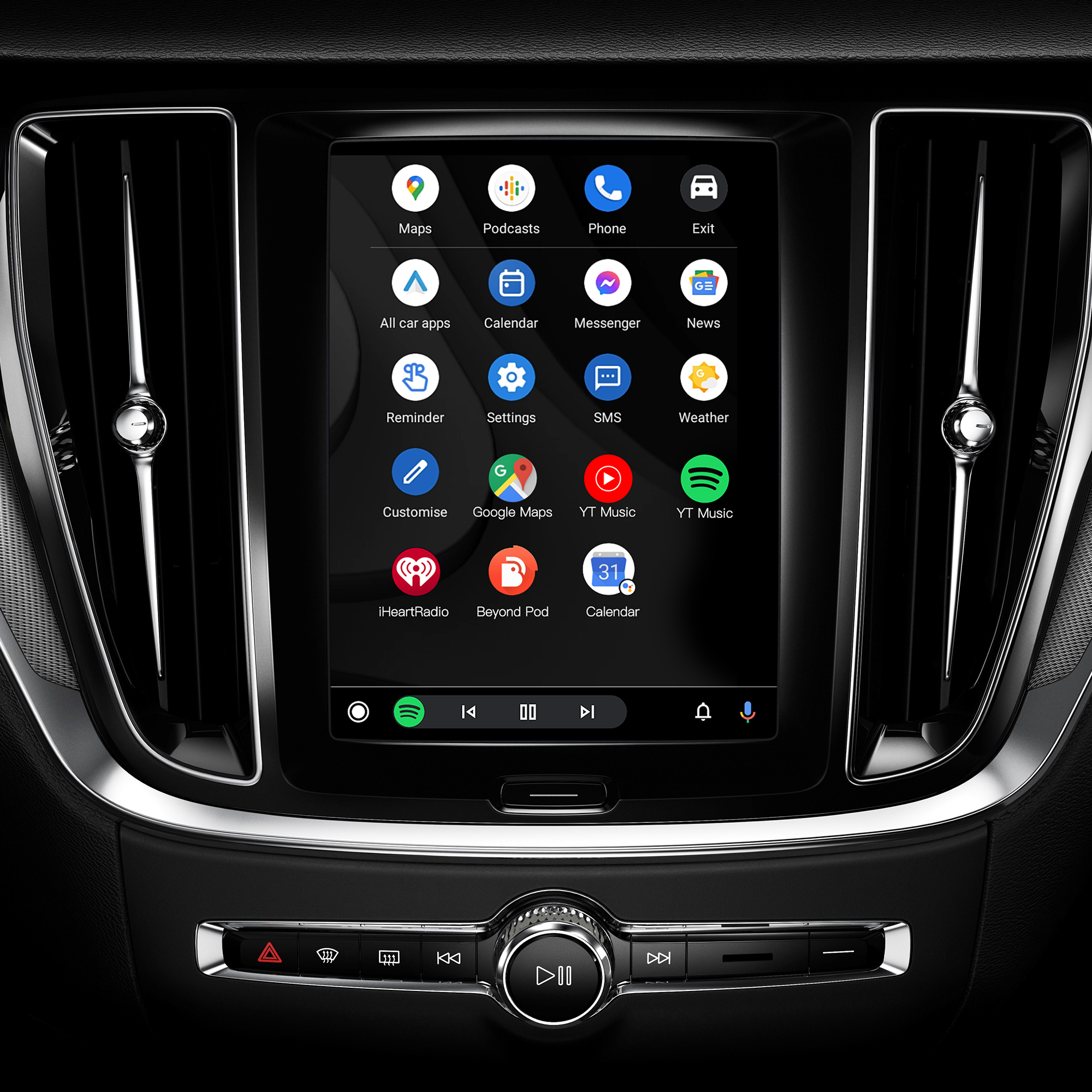
Credit: www.dvdplayer.com.cn
Requirements For Screen Mirroring
Screen mirroring lets you show your Android device screen on your car display. It helps you use apps and maps safely while driving.
To mirror your screen, you need the right phone, car, cables, and apps. This guide explains what you need for screen mirroring on Android Auto.
Compatible Android Devices
Not all Android phones support screen mirroring on Android Auto. Your phone must run Android 10 or higher. It should also support wireless or wired projection.
- Android 10 or later versions
- Screen mirroring feature enabled
- Strong Wi-Fi or USB connection
- Google Play Services updated
Supported Car Models
Screen mirroring works only with some car models that support Android Auto. Most new cars with Android Auto built-in will work.
| Car Brand | Model Examples | Android Auto Support |
| Honda | Civic, Accord, CR-V | Yes |
| Toyota | Camry, Corolla, RAV4 | Yes |
| Ford | F-150, Escape, Explorer | Yes |
| BMW | 3 Series, X5 | Partial |
Necessary Cables And Adapters
You will need cables or adapters to connect your phone to the car display. The type depends on your phone and car model.
- USB Type-C to USB cable for most Android phones
- Micro USB to USB cable for older phones
- Wireless adapter for cars that support wireless Android Auto
- HDMI adapter if your car supports HDMI input
Apps For Screen Mirroring
You need special apps to mirror your screen on Android Auto. These apps help send your phone display to the car system.
- Android Auto app for phone and car connection
- Screen mirroring apps like Screen2Auto or AA Mirror
- Apps must be installed on your phone before use
- Some apps require root access or developer mode
Preparing Your Android Device
To mirror your screen on Android Auto, you must prepare your phone first. This process makes your device ready for the connection.
Follow these steps to enable the necessary settings and install apps needed for screen mirroring.
Enable Developer Options
Developer Options unlock advanced settings on your Android device. You need to enable this to allow screen mirroring.
- Open the Settings app on your Android device.
- Scroll down and tap About phone.
- Find Build number and tap it seven times quickly.
- Enter your device PIN or password if asked.
- Developer Options will now be visible in Settings.
Activate Usb Debugging
USB Debugging allows your phone to communicate with your car system. It is essential for screen mirroring via USB.
- Go to Settings on your phone.
- Tap Developer Options.
- Find USB Debugging and switch it on.
- Confirm the action if a pop-up appears.
Install Required Apps
You need specific apps to connect and mirror your screen on Android Auto. Install these apps before starting the mirroring process.
| App Name | Purpose |
| Android Auto | Main interface for car connection |
| Screen Mirroring App | Enables display sharing to car screen |
| USB Driver | Supports phone and car USB communication |
Connecting To Android Auto
Android Auto lets you use your phone safely while driving. It shows apps on your car screen. Connecting your phone is easy.
This guide covers two ways to connect: using a USB cable and setting up a wireless connection.
Using Usb Cable Connection
To connect with a USB cable, you need the right cable. Use the original or a high-quality USB cable. Follow these steps to connect:
- Plug the USB cable into your phone and car.
- Turn on your car’s display screen.
- Unlock your phone and accept any permission requests.
- Open the Android Auto app if it does not start automatically.
- Follow any on-screen prompts to finish setup.
After connection, your phone’s compatible apps appear on the car screen.
Setting Up Wireless Connection
Some cars support wireless Android Auto. Your phone must have Wi-Fi and Bluetooth turned on. Use this table to check basic requirements:
| Requirement | Details |
| Phone | Android 11 or higher recommended |
| Car | Wireless Android Auto support |
| Connection | Bluetooth and Wi-Fi enabled |
To set up wireless connection, try these steps:
- Pair your phone with the car via Bluetooth.
- Allow permissions on your phone if prompted.
- Open Android Auto app on your phone.
- Tap the wireless connection option inside the app.
- Wait for the car screen to show Android Auto interface.
Step-by-step Screen Mirroring Setup
Screen mirroring on Android Auto lets you show your phone’s screen on your car display. This helps you use apps or view content safely while driving.
Follow these steps carefully to set up screen mirroring on Android Auto without problems.
Launching The Mirror App
First, open the screen mirroring app on your Android phone. You may need to download a compatible mirroring app if you don’t have one.
Make sure your phone is connected to your car’s Android Auto system before launching the app.
- Unlock your phone
- Find and open the mirroring app
- Connect your phone to the car via USB or Bluetooth
Granting Permissions
The mirror app needs permissions to share your phone screen. You will see permission requests when you start the app.
Allow the app to capture your screen and access necessary features for mirroring to work.
- Tap “Allow” on screen capture permission
- Grant access to phone storage if asked
- Confirm any other permissions needed for mirroring
Starting The Mirroring Process
After permissions are set, start the mirroring process within the app. Your phone screen will appear on your car display.
Use your car controls or phone to manage what shows on the screen.
- Tap the “Start Mirroring” button in the app
- Wait a few seconds for connection
- Check the car screen to confirm the mirror
Troubleshooting Common Issues
Screen mirroring on Android Auto can sometimes face problems. These issues may stop your phone from showing on the car display.
Knowing how to fix common problems helps you use screen mirroring smoothly and without frustration.
Connection Failures
Connection failures happen when your phone does not link to Android Auto. This can be caused by cable or wireless issues.
Check if the USB cable is damaged or not working well. Wireless connections need strong Bluetooth and Wi-Fi signals.
- Use a high-quality USB cable for wired connection
- Restart your phone and car system
- Make sure Bluetooth and Wi-Fi are enabled
- Try reconnecting the devices
App Compatibility Problems
Not all apps work with Android Auto’s screen mirroring. Some apps may not show or may close suddenly.
Check if your app is supported by Android Auto. Keep apps and Android Auto updated to the latest versions.
- Use apps approved for Android Auto
- Update apps and Android Auto regularly
- Clear app cache if it crashes often
- Restart your phone after updates
Display Lag And Quality
Screen mirroring may show delays or poor picture quality. This makes it hard to use apps on your car display.
Lag can happen if the connection is weak or the phone is busy. Lower quality can come from low screen resolution settings.
- Close unused apps on your phone
- Use a wired connection for better speed
- Adjust screen resolution in settings if possible
- Keep phone battery charged to avoid slowdowns
Tips For Smooth Mirroring Experience
Mirroring your screen on Android Auto can be very helpful. It allows you to see your phone’s display on your car’s screen. This guide provides tips for a smooth mirroring experience.
Follow these simple steps to ensure your screen mirroring is seamless and efficient. You will enjoy a better connection and display quality.
Optimizing Device Settings
Optimizing your device settings is essential. Make sure your phone’s operating system is updated. Turn on the developer mode for more options.
Check that your phone’s screen resolution is set to a compatible size. Disable unnecessary apps running in the background.
- Update your phone regularly
- Enable developer mode
- Adjust screen resolution
- Close background apps
Maintaining Stable Connections
A stable connection ensures smooth mirroring. Use Wi-Fi to connect whenever possible. Bluetooth connections can also be useful.
Ensure your car’s software is up-to-date. This helps maintain a better connection with your phone.
- Connect via Wi-Fi
- Use Bluetooth if needed
- Update car software
Using High-quality Cables
High-quality cables help transfer data smoothly. Use certified cables for best results. Avoid using damaged or worn-out cables.
Check for cable compatibility with both your phone and car. This ensures a stable and clear connection.
- Use certified cables
- Avoid damaged cables
- Check cable compatibility
Alternative Methods For Screen Sharing
Screen mirroring on Android Auto can be done in different ways. Each method offers unique features for your car display.
This guide will explore some alternative ways to share your screen. Learn how to use apps and devices to make it work.
Using Third-party Apps
Third-party apps provide versatile solutions for screen sharing. These apps can connect your phone to Android Auto easily.
- Download an app like “AA Mirror” from the Play Store.
- Install the app on your Android device.
- Follow in-app instructions for setup.
- Ensure your car’s infotainment system supports the app.
Casting Via Chromecast
Chromecast is another way to mirror your screen. It allows a wireless connection between your phone and the car display.
| Device | Connection Type |
| Chromecast | Wireless |
| HDMI Adapter | Wired |
Make sure your car has an HDMI port if using an adapter. This option is great for those who prefer fewer cables.
Bluetooth Screen Sharing
Bluetooth technology provides a simple way to share your screen. It connects your phone to Android Auto without wires.
This method is ideal for quick and easy setup. Bluetooth requires less setup time compared to other methods.

Credit: www.youtube.com

Credit: www.reddit.com
Frequently Asked Questions
How Can I Mirror My Android Screen On Android Auto?
To mirror your Android screen on Android Auto, use third-party apps like AA Mirror or Screen2Auto. Connect your phone via USB and enable developer mode in Android Auto. This allows you to cast your screen safely while driving.
Is Screen Mirroring Safe While Driving On Android Auto?
Screen mirroring on Android Auto can be unsafe if it distracts you. Always prioritize road safety and use mirrored content responsibly. Avoid watching videos or using apps that divert your attention while driving.
What Apps Support Screen Mirroring On Android Auto?
Popular apps like AA Mirror, Screen2Auto, and CarStream support screen mirroring on Android Auto. They allow you to stream apps and videos directly to your car’s display. Ensure compatibility with your device before installing.
Do I Need Developer Mode To Mirror Screen On Android Auto?
Yes, enabling developer mode in Android Auto is usually required. It unlocks hidden settings needed for screen mirroring apps to work properly. Access developer mode from the Android Auto settings on your phone.
Conclusion
Screen mirroring on Android Auto makes driving safer and more fun. It helps you see apps and maps on your car’s display easily. Follow the steps carefully for a smooth connection. Keep your phone and car system updated for best results.
Enjoy hands-free control and stay focused on the road. Try it today and improve your driving experience. Simple, useful, and convenient.