
Struggling to find the right volume on Android Auto can be frustrating, especially when you’re focused on the road. You want your music clear, your calls loud enough, but not blasting your speakers.
What if you could control the volume easily without distractions? In this guide, you’ll discover simple tricks to adjust your Android Auto volume quickly and safely. Keep reading, and take full control of your in-car audio experience today.

Credit: www.reddit.com
Adjusting Volume With Steering Wheel Controls
Controlling the volume on Android Auto is easy using your car’s steering wheel. This lets you keep your hands on the wheel and stay safe while driving.
Many cars have volume buttons on the steering wheel. These buttons let you raise or lower the sound without looking away from the road.
Locating The Volume Buttons
Volume buttons are often found on the left or right side of the steering wheel. They usually have plus (+) and minus (-) symbols or speaker icons.
- Look for buttons with speaker or volume icons
- Check the side of the steering wheel closest to your thumb
- Refer to your car manual if you can’t find them
- Some cars use a roller or toggle switch instead of buttons
Using Voice Commands For Volume
You can also change the volume by speaking to Android Auto. This helps you keep your eyes on the road and hands on the wheel.
| Voice Command | Function |
| “Increase volume” | Raises the volume |
| “Lower volume” | Lowers the volume |
| “Set volume to 50%” | Sets volume at half level |
| “Mute volume” | Turns off sound |
Using The Android Auto App For Volume Control
Android Auto lets you control your car’s audio volume easily. You can adjust sound levels using the Android Auto app on your phone.
This guide explains how to use the app to change volume settings and customize sound preferences for a better driving experience.
Accessing Volume Settings
Open the Android Auto app on your phone to start. The app connects your phone to your car’s system.
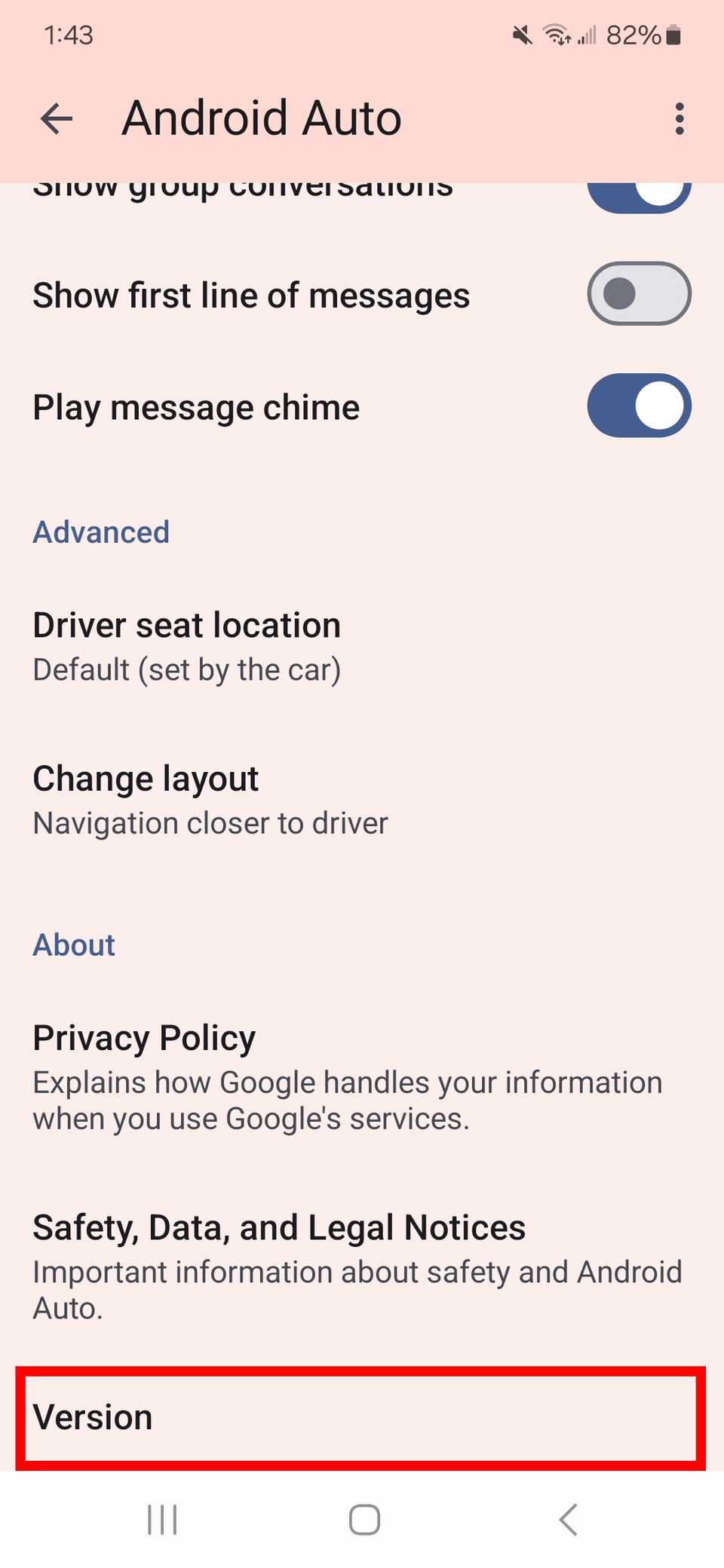
Find the settings menu by tapping the three lines or gear icon. Look for sound or volume options in the list.
- Tap the Android Auto app icon
- Open the menu from the top corner
- Select “Settings”
- Scroll to find “Volume” or “Sound”
Customizing Sound Preferences
In the volume settings, you can adjust different sound levels for music, calls, and navigation.
Set each sound to a level that is easy to hear without distraction. You can also enable sound balance options if available.
- Adjust music volume separately
- Set call volume for clear conversations
- Change navigation voice volume
- Use balance settings to change left-right sound
Controlling Volume Via Car Stereo
Controlling the volume on Android Auto through your car stereo is simple. You can use physical controls or touchscreen options available in your vehicle.
This guide explains how to adjust the volume using your car’s stereo system while driving.
Using Physical Knobs And Buttons
Most cars have physical knobs or buttons to control audio volume. These controls work directly with Android Auto audio output.
- Turn the volume knob clockwise to increase sound.
- Turn the knob counterclockwise to lower volume.
- Use volume up/down buttons to adjust sound in small steps.
- Press mute button to silence audio instantly.
Navigating Touchscreen Controls
Your car’s touchscreen also lets you control Android Auto volume. The interface shows volume sliders or icons to adjust sound levels.
| Control Type | How to Use |
| Volume Slider | Drag slider left or right to lower or raise volume |
| Volume Icons | Tap + or – icons to change volume step-by-step |
| Mute Button | Tap mute icon to silence audio quickly |
Credit: www.androidpolice.com
Managing Media And Call Volume Separately
Android Auto lets you control the sound for music and calls separately. This helps you hear calls clearly without lowering your music too much.
You can adjust media and call volumes using simple settings on your phone or car display.
Adjusting Media Playback Volume
To change the media volume, use the volume buttons on your car’s dashboard or steering wheel. This controls music, podcasts, and other sounds.
- Press the volume up or down button while media is playing.
- Watch the volume bar on the car screen to see the level change.
- You can also adjust media volume on your phone before connecting to Android Auto.
Setting Call Volume Levels
Call volume is separate from media volume. You can set it when you receive or make a call using Android Auto.
| Action | How to Adjust |
| During a call | Use the car’s volume buttons to raise or lower call sound. |
| Before a call | Adjust call volume on your phone’s Bluetooth settings. |
| After a call ends | Media volume returns to its previous level automatically. |
Troubleshooting Volume Issues
Sometimes, the volume on Android Auto may not work as expected. This can cause frustration while driving.
Knowing how to fix volume problems helps keep your drive safe and enjoyable.
Fixing No Sound Problems
No sound can happen if the connection between your phone and car is faulty. It might also be caused by software glitches.
Check that the phone is connected properly and the volume is turned up both on the car and phone.
- Make sure the car audio system is not muted.
- Restart your phone and the car’s infotainment system.
- Check the Android Auto app for updates.
- Disconnect and reconnect the USB cable or Bluetooth.
- Ensure the phone’s media volume is not set to zero.
Resolving Volume Lag Or Delay
Volume lag or delay means the sound changes slowly after you adjust the volume. This can be annoying during calls or music playback.
Lag often happens due to slow system response or interference from other apps.
- Close other apps running in the background.
- Restart Android Auto and your phone.
- Use a high-quality USB cable for a stable connection.
- Update your phone’s operating system and Android Auto app.
- Check for any settings that limit audio performance in your car.
Tips For Optimal Sound Experience
Controlling volume on Android Auto can enhance your drive. Learn how to adjust settings for the best sound quality.
Discover tips to balance audio elements and customize your experience. Make your music and calls sound just right.
Balancing Bass And Treble
Find the right balance between bass and treble to enhance audio. Adjust these settings based on your music preference.
- Increase bass for a deeper sound
- Reduce treble if it’s too sharp
- Test settings with different music genres
Using Equalizer Settings
Most Android Auto systems come with an equalizer. Use it to customize your sound profile.
| Setting | Effect |
| Bass Boost | Enhances low frequencies |
| Treble Boost | Enhances high frequencies |
| Balanced | Equalizes all frequencies |
Experiment with these settings to find what suits your taste. Adjust them according to the type of audio you prefer.

Credit: www.reddit.com
Frequently Asked Questions
How Do I Adjust Volume On Android Auto?
To adjust volume on Android Auto, use your car’s physical volume buttons. You can also adjust media volume through the Android Auto app settings on your phone for precise control.
Can I Control Navigation Volume Separately?
Yes, Android Auto allows separate control of navigation prompts volume. Use the media volume buttons while navigation is speaking to adjust it independently.
Why Is Volume Low On Android Auto?
Low volume might be due to car audio settings or phone volume limits. Check both your phone and car system volume levels to fix this issue.
How To Mute Android Auto Quickly?
You can mute Android Auto by pressing the volume down button until it mutes. Alternatively, use the mute option in your car’s infotainment system.
Conclusion
Controlling volume on Android Auto is simple and quick. Use the car’s buttons or the phone screen to adjust sound. Keep your focus on the road while changing volume. Small steps help keep music and calls clear. Practice these tips to stay safe and enjoy your drive.
Volume control becomes easy with a little attention. Try these methods next time you drive with Android Auto.