
Are you tired of struggling to switch between apps while driving with Android Auto? Knowing how to change apps quickly and safely can make your drive smoother and more enjoyable.
You’ll discover simple steps to navigate your favorite apps without distraction. By the end, you’ll feel confident controlling your music, maps, and messages right from your car’s screen. Keep reading to unlock easy tips that put you in full control of your Android Auto experience.
Accessing Android Auto
Android Auto lets you use apps safely while driving. You can change apps easily once connected.
This guide shows how to access Android Auto by connecting your phone and launching the interface.
Connecting Your Phone
To start using Android Auto, connect your phone to your car’s system. You can do this with a USB cable or wirelessly if supported.
- Use a compatible USB cable to plug your phone into the car’s USB port.
- Turn on your car and select the Android Auto option on the display.
- If your car supports wireless Android Auto, pair your phone via Bluetooth and Wi-Fi.
- Make sure your phone’s Android Auto app is updated to the latest version.
Launching The Interface
After connecting your phone, launch the Android Auto interface on your car’s screen. This lets you access apps safely while driving.
| Action | Details |
| Open Android Auto | Select the Android Auto icon on your car’s display. |
| Navigate | Use touch, steering wheel buttons, or voice commands. |
| Switch Apps | Tap the app launcher to choose different apps. |
| Exit | Press the home or back button to leave Android Auto. |
Credit: www.androidpolice.com
Navigating The App Menu
Changing apps in Android Auto is easy once you know where to look. The app menu lets you switch between your favorite apps.
Understanding how to navigate this menu will help you use Android Auto safely while driving.
Locating Available Apps
To find apps in Android Auto, tap the app launcher icon on the home screen. This icon looks like a grid of dots.
After tapping, you will see a list of all the apps that work with Android Auto on your phone.
- Swipe up or down to scroll through the app list
- Tap any app icon to open it
- Only apps that are compatible with Android Auto will appear
Using Voice Commands
You can change apps without touching the screen by using voice commands. This keeps your hands on the wheel.
Press the voice command button on your steering wheel or say “Hey Google” to start.
- Say “Open [app name]” to launch an app
- Ask “Show me my apps” to hear available apps
- Use commands like “Play music” or “Navigate home” to switch functions
Switching Between Apps
Android Auto lets you use apps safely while driving. Switching between apps is simple.
You can change apps manually or use your car’s steering wheel controls.
Manual App Switching
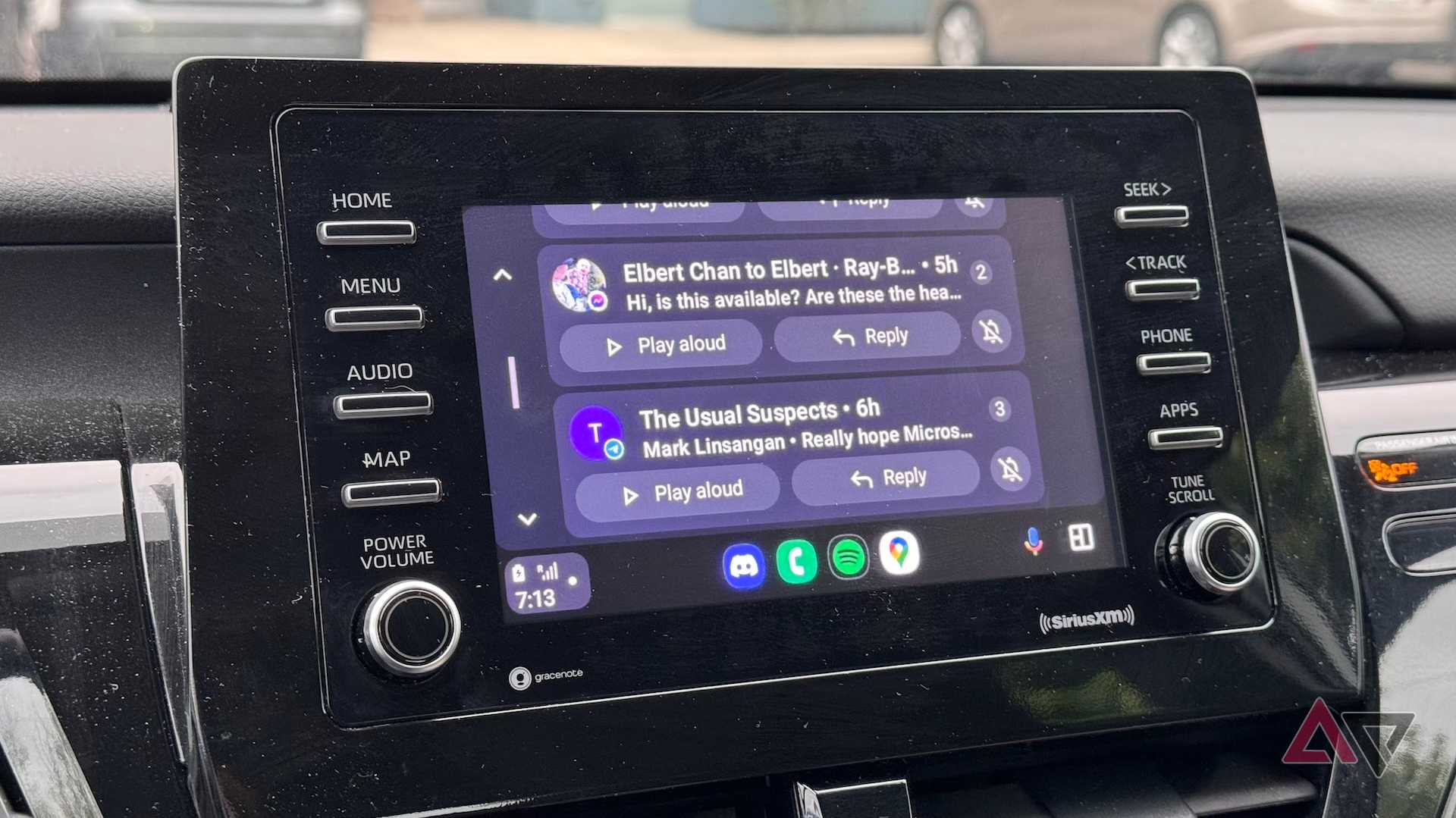
To switch apps manually, use the touchscreen on your car’s display. Tap the home button to see the app menu.
- Tap the app icon you want to open.
- Swipe left or right to find more apps.
- Use the back button to return to the previous app.
- Some cars support voice commands for app switching.
Using Steering Wheel Controls
Steering wheel buttons help you switch apps without taking your hands off the wheel.
| Control | Function |
| Next Track / Next App Button | Switch to the next app in the list |
| Previous Track / Previous App Button | Return to the previous app |
| Voice Command Button | Activate voice control to switch apps |
| Scroll Wheel | Navigate through app icons on the screen |
Credit: www.androidpolice.com
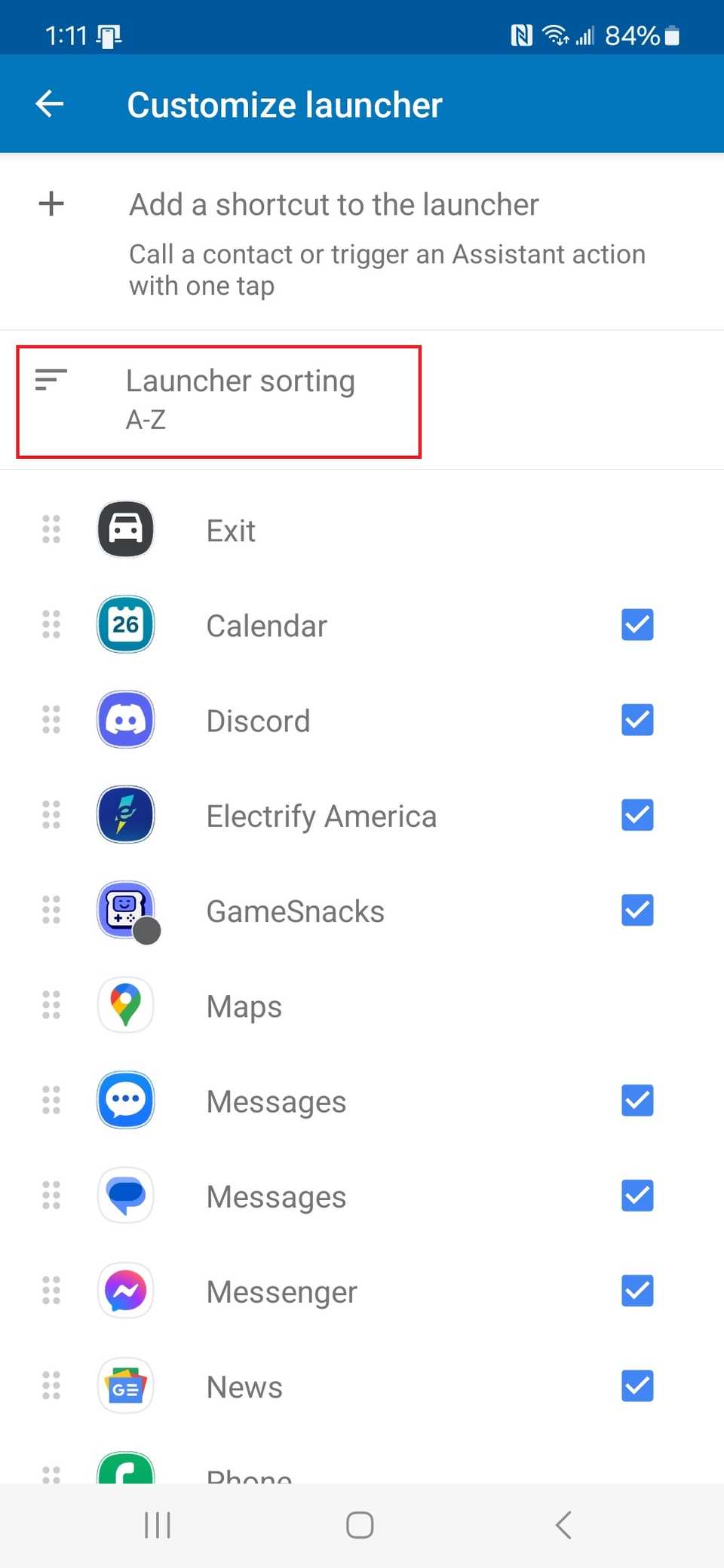
Customizing App Order
Android Auto lets you organize apps to fit your needs. Changing the app order helps you access your favorites faster.
You can rearrange apps on the screen and hide those you do not use. This keeps your display clean and easy to use.
Rearranging Apps On Screen
To change the order of apps in Android Auto, open the app list on your car screen. Then, follow these steps:
- Touch and hold the app icon you want to move.
- Drag the icon to your preferred spot.
- Release the icon to set it in place.
- Repeat for other apps you want to rearrange.
The new order will save automatically. You can always change it again later.
Hiding Unused Apps
Hiding apps you rarely use makes your screen less crowded. To hide apps, follow these steps:
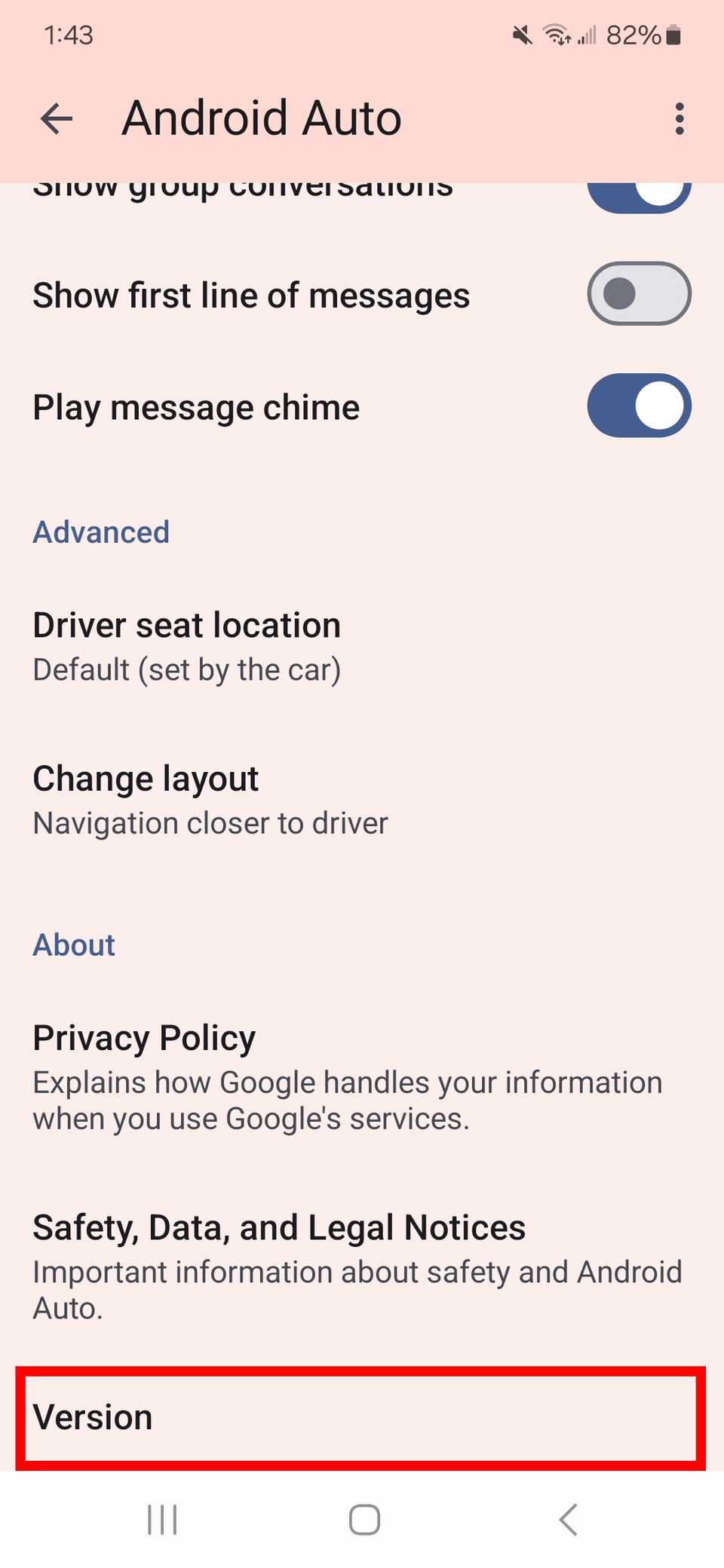
- Open the Android Auto settings on your phone.
- Find the list of available apps.
- Toggle off the apps you want to hide.
- Check your car screen to see the changes.
| Action | Effect |
|---|---|
| Toggle app ON | App shows on Android Auto screen |
| Toggle app OFF | App is hidden from the screen |
Troubleshooting App Switching
Changing apps in Android Auto should be simple. Sometimes, switching apps does not work as expected.
This guide helps you fix common problems when you cannot change apps in Android Auto.
Common Issues And Fixes
One common issue is apps not showing in Android Auto. This happens if the app is not compatible or not allowed in settings.
To fix this, check app permissions and make sure the app supports Android Auto. Restarting the phone can also help.
- Verify app compatibility with Android Auto
- Allow app permissions for Android Auto
- Restart your phone and try again
Another problem is the app switching button not responding. This can be caused by a software glitch or a slow connection.
Try disconnecting and reconnecting your phone. If the problem remains, clear the cache of the Android Auto app.
- Disconnect and reconnect your phone
- Clear Android Auto app cache in settings
- Close unused apps to improve performance
Updating Android Auto
Outdated apps may cause issues with switching. Always keep Android Auto updated to the latest version.
Visit the Google Play Store, search for Android Auto, and update if an update is available. Restart your phone after updating.
- Open Google Play Store
- Search for Android Auto
- Tap Update if available
- Restart your phone
Credit: www.androidpolice.com
Frequently Asked Questions
How Do I Switch Apps In Android Auto?
To switch apps in Android Auto, tap the app launcher icon on the screen. Select the desired app from the list. You can also use voice commands by saying “Open [app name]” for hands-free switching.
Can I Customize App Order On Android Auto?
Yes, you can customize the app order in Android Auto settings. Open the Android Auto app on your phone, go to “Customize launcher,” and rearrange or hide apps as preferred for quick access.
What Apps Are Compatible With Android Auto?
Android Auto supports navigation, music, messaging, and voice assistant apps. Popular ones include Google Maps, Waze, Spotify, WhatsApp, and Google Assistant. Ensure apps are updated for smooth functionality.
How To Change Apps Using Voice Commands?
Activate Google Assistant by saying “Hey Google. ” Then say, “Open [app name]. ” This allows safe and quick app switching without touching the screen while driving.
Conclusion
Changing apps in Android Auto is simple and quick. Just follow the steps carefully. This helps you stay focused while driving. You can switch between music, maps, and messages easily. Enjoy safer and smoother trips with these tips. Keep your phone connected and apps updated for best results.
Practice a few times to get comfortable. Now, you can control your apps without distraction. Drive smart and stay connected safely.