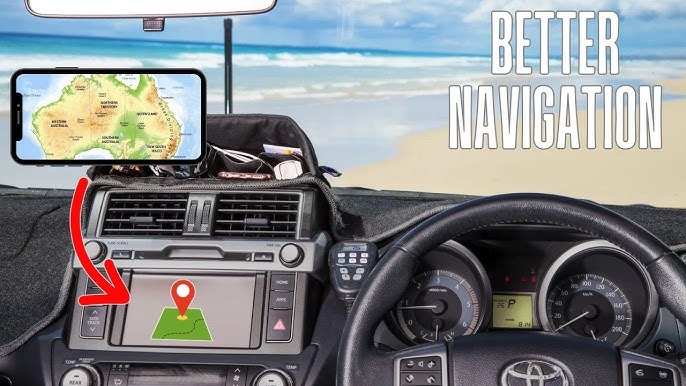
Imagine having all your favorite apps, videos, and navigation tools right on your car’s dashboard. Sounds great, right?
If you want to make your drives safer and more enjoyable, learning how to mirror to Android Auto is the key. This simple trick lets you connect your phone’s screen to your car, giving you easy access without distractions. Ready to unlock this powerful feature and transform your driving experience?
Keep reading, and you’ll discover step-by-step how to mirror to Android Auto like a pro.

Credit: www.reddit.com
Preparing Your Devices
Mirroring your phone to Android Auto lets you see your apps on your car screen. Getting your devices ready is important to avoid issues.
This guide helps you prepare your phone and car system for a smooth connection.
Check Compatibility
Not all phones and cars work with Android Auto. Check if your phone and car support it before you start.
- Your phone should run Android 6.0 or higher.
- Your car’s head unit must support Android Auto.
- Some apps may not work with mirroring.
- Check your car’s manual for Android Auto info.
Update Software
Make sure your phone and car system have the latest software updates. Updates fix bugs and improve connection.
- Go to your phone’s settings and check for system updates.
- Update Android Auto app if needed.
- Check your car’s system for firmware updates.
- Restart devices after updates to apply changes.
Gather Necessary Cables
You need the right cables to connect your phone to the car. Using poor cables can cause connection problems.
- Use a good quality USB cable (USB-C or Micro USB).
- A cable that supports data transfer is required, not just charging.
- Keep cables untangled and in good condition.
- Have an extra cable handy in case one breaks.

Credit: medium.com
Connecting Via Usb
Mirroring your phone to Android Auto lets you see your apps on the car screen. You can connect your phone using a USB cable. This method is fast and reliable for mirroring.
Before connecting, you need to prepare your phone by enabling some settings. These settings help your phone communicate with Android Auto through USB.
Enable Developer Options
Developer Options unlock advanced settings on your Android phone. You must enable it to allow USB mirroring features.
To enable Developer Options, open your phone’s Settings and find the About Phone section. Tap the Build Number seven times until you see a message that Developer Options is active.
- Open Settings
- Go to About Phone
- Tap Build Number 7 times
- Return to main Settings menu
- Find Developer Options
Allow Usb Debugging
USB Debugging lets your phone connect to the car’s system for mirroring. It is found inside Developer Options.
Turn on USB Debugging by opening Developer Options and toggling the USB Debugging switch. Confirm any pop-up messages to allow the connection.
- Go to Developer Options
- Find USB Debugging
- Toggle it on
- Accept permission prompts
Establish The Usb Connection
Use a good-quality USB cable to connect your phone to the car. The cable should support data transfer, not just charging.
Once connected, your phone may ask to allow USB access. Approve the request to start mirroring to Android Auto.
- Plug USB cable into phone and car
- Use a data-capable cable
- Allow USB access on phone
- Wait for Android Auto to start
Using Wireless Mirroring
Wireless mirroring lets you share your phone screen on Android Auto without cables. It uses Wi-Fi to connect your phone and car.
This way, you can see apps, maps, and messages on the car’s screen easily and safely.
Set Up Wi-fi Connection
First, make sure your car and phone connect to the same Wi-Fi network. This is needed for wireless mirroring to work.
Turn on Wi-Fi on your phone and car system. Check that both devices see the same network name.
- Open Wi-Fi settings on your phone
- Choose the car’s Wi-Fi network or a shared hotspot
- Connect and confirm the connection on both devices
Pair Your Phone With Car
Next, pair your phone to the car using Bluetooth. This helps start the mirroring process and controls.
Enable Bluetooth on both devices, then select your car from the phone’s device list to pair.
- Turn on Bluetooth on your phone and car
- Search for available devices on your phone
- Select your car’s name and confirm pairing codes
- Wait for the devices to connect successfully
Launch Wireless Mirroring Apps
After pairing, open a wireless mirroring app on your phone. These apps send your screen to Android Auto.
Choose an app that works with your phone and car. Follow the app’s instructions to start mirroring.
- Open the mirroring app on your phone
- Select your car’s display from the app
- Allow permissions for screen sharing
- Enjoy your phone screen on Android Auto
Popular Apps For Mirroring
Mirroring your phone to Android Auto makes driving safer and more fun. Many apps help you show your phone screen on your car display. These apps work with different devices and offer useful features.
Here, we look at popular apps for screen mirroring, alternatives to Android Auto, and tips for setting up these apps correctly.
Screen Mirroring Apps
Several apps let you mirror your phone to Android Auto. They vary in features and ease of use. Some apps need a USB connection, while others work over Wi-Fi.
- Screen2Auto:Connects your phone screen to Android Auto with simple setup.
- AA Mirror:Shows your phone screen and supports touch control.
- CarStream:Plays videos and mirrors apps on Android Auto.
- ApowerMirror:Works on many devices and offers good video quality.
Android Auto Alternatives
Some apps provide features like Android Auto but with different interfaces or extra options. They can be useful if you want more control over your car display.
| App Name | Main Feature | Connection Type |
| Drivemode | Simple interface for calls and messages | Bluetooth/Wi-Fi |
| Car Dashdroid | Customizable dashboard with quick access | Wi-Fi |
| AutoMate | Voice commands and navigation support | Bluetooth |
| Headunit Reloaded | Full Android Auto experience on tablets | USB |
App Setup Tips
Setting up mirroring apps correctly is important for safety and performance. Follow these tips to get the best experience.
- Check app permissions to allow screen sharing and audio.
- Use a stable USB cable or reliable Wi-Fi network.
- Keep your phone and app updated for new features and fixes.
- Test the app before driving to avoid distractions.
- Adjust settings for brightness and sound inside the app.
Troubleshooting Common Issues
Mirroring your phone to Android Auto can improve your driving experience. Sometimes, things do not work perfectly. Troubleshooting helps fix common problems.
This guide covers three common issues: connection failures, display problems, and audio sync issues. Follow simple tips to solve them.
Connection Failures
Connection failures happen when your phone does not link to Android Auto. This can stop mirroring from starting. The cause may be cables, apps, or settings.
Check if your USB cable is undamaged and supports data transfer. Restart your phone and car system. Also, make sure Android Auto app has all permissions.
- Use a good quality USB cable
- Enable USB debugging on your phone
- Allow all app permissions for Android Auto
- Restart both phone and car system
- Update Android Auto app to latest version
Display Problems
Display problems include a blank screen or wrong screen size. This can make it hard to use Android Auto. The issue may come from screen settings or app bugs.
Try adjusting screen resolution or orientation in your car settings. Clear the cache of the Android Auto app. If needed, reinstall the app to remove bugs.
- Adjust car screen resolution and orientation
- Clear Android Auto app cache in phone settings
- Reinstall Android Auto app to fix bugs
- Check for system updates on your car
Audio Sync Issues
Audio sync issues cause sound to delay or not match the video. This problem can distract drivers and reduce safety.
Ensure your phone and car software are up to date. Restart both devices to reset audio connections. Lower Bluetooth interference by moving other devices away.
- Update phone and car software regularly
- Restart phone and car system before use
- Reduce Bluetooth devices near your car
- Use wired connection if Bluetooth audio lags
Tips For Best Performance
Mirroring to Android Auto can improve your driving experience. It offers access to apps and navigation on your car’s display.
To ensure smooth operation, follow these tips. They will help you achieve the best performance.
Optimize Network Settings
A stable network connection is vital for Android Auto. It helps in fast data transfer and smooth app functioning.
Ensure your mobile data or Wi-Fi signal is strong. Avoid areas with poor network coverage.
- Check your network signal strength before starting.
- Switch to a stable Wi-Fi if possible.
- Limit background data usage for other apps.
Manage Battery Usage
Android Auto uses battery power quickly. Managing your phone’s battery can prevent interruptions.
Keep your phone charged during use. Consider using battery-saving modes to extend usage time.
- Always use a car charger while driving.
- Turn on battery saver mode if needed.
- Close apps running in the background.
Keep Software Updated
Software updates often include bug fixes. They improve compatibility and functionality of Android Auto.
Regularly check for updates on your phone. Also, ensure your car’s infotainment system is up to date.
- Enable automatic updates on your phone.
- Visit your car dealer for infotainment updates.
- Restart your device after updates for best results.

Credit: www.youtube.com
Frequently Asked Questions
How Do I Mirror My Phone To Android Auto?
To mirror your phone, use a compatible app like Screen2Auto or AA Mirror. Connect via USB or wireless. Ensure your car supports mirroring and enable developer options in Android Auto.
Is Screen Mirroring Safe On Android Auto?
Yes, screen mirroring is safe if you use trusted apps. Avoid unknown third-party apps to prevent security risks. Always update your phone and Android Auto for security patches.
Can I Mirror Apps Not Supported By Android Auto?
Yes, mirroring apps bypass Android Auto limitations. Apps like YouTube or Netflix can be mirrored using specific mirroring apps. Use caution and prioritize safety while driving.
What Devices Support Android Auto Screen Mirroring?
Most Android phones running Android 6. 0 or higher support Android Auto. Your car’s infotainment system must also support screen mirroring. Check compatibility before attempting to mirror.
Conclusion
Mirroring your phone to Android Auto makes driving safer and more fun. It lets you see apps and maps right on your car screen. Follow simple steps to connect your phone quickly. Remember to keep your phone updated for smooth use.
Always use mirroring responsibly and avoid distractions while driving. Enjoy the convenience of Android Auto every time you hit the road.