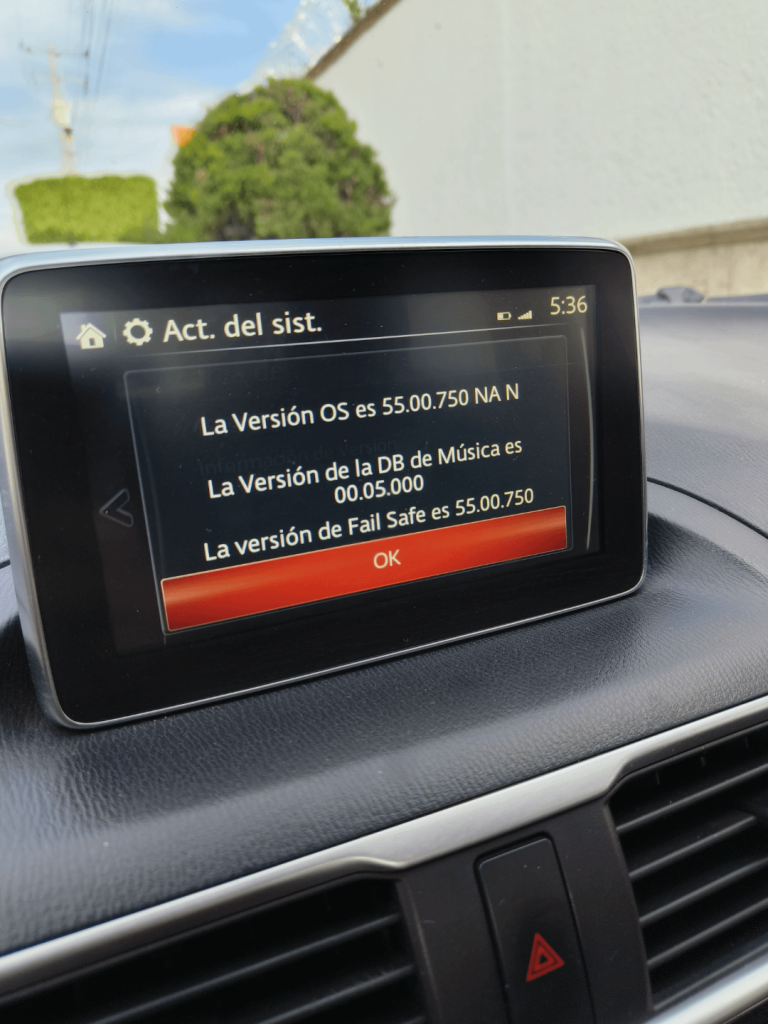
Have you ever wanted to see your phone’s apps right on your car’s screen? Mirroring Link Android Auto lets you do just that, making your drive safer and more fun.
Imagine accessing your favorite apps, maps, and music without fumbling with your phone. In this guide, you’ll learn simple steps to set it up quickly and start enjoying seamless connectivity. Keep reading to unlock the full potential of your Android Auto experience!
What Is Mirror Link
Mirror Link is a technology that connects your phone to your car’s screen. It shows your phone’s apps on the car display. This helps you use apps safely while driving.
Many cars and phones support Mirror Link. It works with Android phones to share navigation, music, and calls on the car screen.
How Mirror Link Works
Mirror Link uses a cable or wireless connection to link your phone and car. It sends the phone’s screen to the car display. You can control apps using the car’s controls.
- Connect phone to car via USB or Bluetooth
- Phone screen appears on car display
- Control apps using car buttons or touchscreen
Benefits Of Mirror Link
Mirror Link keeps your focus on the road. It lets you use important apps without holding your phone. This makes driving safer and easier.
- Safe use of navigation apps
- Hands-free calling and messaging
- Access to music and media apps
- Simple control from the car dashboard
Compatibility Of Mirror Link
Not all phones or cars support Mirror Link. Many Android phones do, but some newer models focus on Android Auto. Check your phone and car manuals for support.
- Supported on many Android phones
- Works with certain car brands and models
- May require a USB cable connection
- Different from Android Auto and Apple CarPlay

Credit: goomac.en.made-in-china.com
Benefits Of Using Mirror Link
Mirror Link connects your Android phone to your car’s display. It shows your phone apps on the car screen. This makes driving safer and easier.
Using Mirror Link with Android Auto gives you control over music, maps, and calls. It helps you stay focused on the road.
Easy Access To Navigation
Mirror Link lets you use your phone’s navigation apps on the car screen. You can see directions clearly without holding your phone.
This helps you follow routes safely. You avoid looking down at your phone or getting lost.
Hands-free Communication
With Mirror Link, you can answer calls and send messages using voice commands. This means your hands stay on the wheel.
It reduces distractions and keeps you connected without risking safety.
Control Music And Media Easily
Mirror Link allows you to play music and podcasts from your phone on the car’s audio system. You can control playback from the car screen.
This makes it simple to change songs or adjust volume without taking your eyes off the road.
Improves Driving Safety
Mirror Link reduces the need to handle your phone while driving. It puts important apps where you can see them easily.
This lowers the chance of accidents caused by distractions from phone use.
Supports Multiple Car Models
Mirror Link works with many car brands and models. You don’t need special equipment to use it in most cars.
This makes it a flexible option for drivers with different vehicles.
Requirements For Mirror Link Setup
Mirror Link lets you connect your Android phone to your car’s screen. It shows apps and maps from your phone on the car display.
To use Mirror Link with Android Auto, you need some tools and checks. These help the connection work smoothly and safely.
Compatible Devices
Not all phones support Mirror Link. You need a compatible Android phone with the right software.
- Android phones with version 5.0 or higher
- Phones that have Mirror Link enabled by the manufacturer
- Devices with USB or Bluetooth connection options
- Phones that support Android Auto features
Necessary Apps
You must install the right apps to use Mirror Link with Android Auto. These apps help your phone connect and share data with the car.
- Android Auto app from Google Play Store
- Mirror Link app or any app provided by your phone maker
- Car manufacturer’s app if needed for better control
- Navigation and music apps compatible with Android Auto
Car System Compatibility
Your car’s system must support Mirror Link and Android Auto. Check your car model and software version for this.
| Car Brand | Mirror Link Support | Android Auto Support |
|---|---|---|
| Volkswagen | Yes | Yes |
| Honda | Yes | Yes |
| Ford | Limited | Yes |
| Toyota | No | Yes |
| Hyundai | Yes | Yes |

Credit: www.ebay.ca
Preparing Your Android Device
Before you mirror Link Android Auto, you need to get your Android device ready. This means changing some settings to allow the connection.
Two important settings to enable are Developer Options and USB Debugging. These help your phone connect properly to your car or screen.
Enable Developer Options
Developer Options is a hidden menu on Android devices. It gives access to advanced settings needed for mirroring Android Auto.
To enable Developer Options:
- Open the Settings app on your Android phone.
- Scroll down and tap on About Phone.
- Find the Build Number entry.
- Tap Build Number seven times quickly.
- You will see a message saying Developer Options are enabled.
Activate Usb Debugging
USB Debugging allows your phone to communicate with other devices through a USB connection. This is needed for Android Auto mirroring.
To turn on USB Debugging:
- Go back to the main Settings menu.
- Scroll down and tap on Developer Options.
- Look for USB Debugging and toggle it on.
- Confirm the action if a pop-up appears.
Connecting Android Auto Via Mirror Link
Mirror Link lets you show your phone screen on your car display. It helps you use Android Auto features safely while driving.
You can connect Android Auto using a USB cable or wirelessly. Both ways let you control your apps on the car screen.
Using Usb Cable
Connect your phone to your car using a USB cable. This method is simple and works with most cars.
Make sure you use the original or a good quality USB cable. Poor cables may cause connection issues.
- Plug the USB cable into your phone and car.
- Unlock your phone and allow permissions.
- Open the Android Auto app if it doesn’t start automatically.
- Your phone screen will mirror on the car display.
Wireless Connection Setup
Wireless connection lets you use Android Auto without cables. Your car and phone must support wireless Mirror Link.
Turn on Wi-Fi and Bluetooth on both devices. Then, pair your phone with the car system to start the connection.
- Enable Bluetooth and Wi-Fi on your phone.
- Access your car’s settings and find wireless Android Auto or Mirror Link.
- Pair your phone with the car system via Bluetooth.
- Follow prompts to allow screen sharing.
- Android Auto will display on your car screen wirelessly.
Troubleshooting Common Issues
Mirroring your Android Auto can be challenging. Many users face common issues during setup. Let’s explore solutions to these issues.
Follow this guide to resolve connection failures, app compatibility problems, and display or audio issues.
Connection Failures
Connection failures often occur with Android Auto. Check your USB cable and phone settings. Make sure both are compatible with Android Auto.
- Use a high-quality USB cable.
- Ensure your phone is updated.
- Restart your phone and car system.
App Compatibility Problems
Not all apps work with Android Auto. Ensure your apps are compatible. Update apps regularly to avoid issues.
Check app compatibility on the Google Play Store.
Display And Audio Issues
Display and audio issues can disrupt your experience. Adjust settings to improve performance. Sometimes, a simple restart can help.
| Issue | Solution |
| Screen flicker | Check cable connection |
| Audio lag | Update your car’s software |
| No sound | Check volume settings |
Tips For Better Connectivity
Mirroring your Android Auto can enhance your driving experience. It’s important to ensure a seamless connection.
Here are some practical tips to help you achieve better connectivity for Android Auto.
Keep Software Updated
Ensure that your phone and Android Auto app are up to date. New updates fix bugs and improve performance.
- Check for updates in your phone’s settings.
- Visit the Google Play Store for app updates.
- Restart your phone after updating.
Use Quality Cables
Using a good quality USB cable can make a difference. Avoid cheap cables that may cause connection issues.
- Choose cables with fast data transfer rates.
- Check for wear and tear regularly.
- Replace damaged cables immediately.
Optimize Phone Settings
Adjust your phone settings for optimal performance. This helps in maintaining a stable connection.
1. Turn off battery saver mode.
2. Enable Bluetooth and Wi-Fi.
3. Clear app cache regularly.

Credit: www.amazon.co.uk
Frequently Asked Questions
What Devices Support Android Auto Mirroring?
Most Android phones running Android 6. 0+ support Android Auto mirroring. Your car’s infotainment system must also be compatible. Check both device and car manuals for compatibility before attempting mirroring.
How To Enable Screen Mirroring On Android Auto?
Enable developer mode on Android Auto by tapping the version 10 times. Then, activate wireless projection in developer settings. Connect your phone to your car’s system via USB or Bluetooth for mirroring.
Is Usb Or Wireless Better For Android Auto Mirroring?
USB provides a stable, lag-free connection ideal for mirroring. Wireless offers convenience but may have slight delays or connectivity issues. Choose based on your preference for stability or ease of use.
Can I Mirror Apps Not Supported By Android Auto?
Yes, using third-party apps like AA Mirror or Screen2Auto can mirror unsupported apps. Be cautious, as this may violate safety guidelines and void warranties. Use such apps responsibly.
Conclusion
Mirroring Link Android Auto helps you use your phone safely while driving. It shows your phone screen on the car display. This makes navigation, calls, and music easier to access. Follow the steps carefully to connect your phone. Make sure your car and phone support this feature.
Stay focused on the road and avoid distractions. Enjoy a smoother driving experience with mirrored Android Auto. Keep your apps updated for better performance. Try it out and drive safely every time.